Installing and your computer
64-bit Windows 10 (22H2) and 11, disk, antivirus, and updates.
Step by step
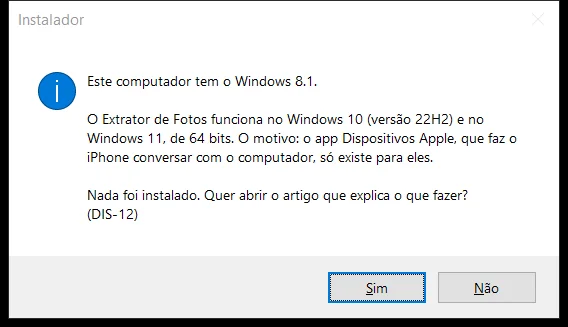 Install on WindowsThe installer checks Windows first and tells you what to do, if needed.4 steps
 Program updatesIt downloads new versions by itself, installs only with your click, and rolls back if something goes wrong.3 steps
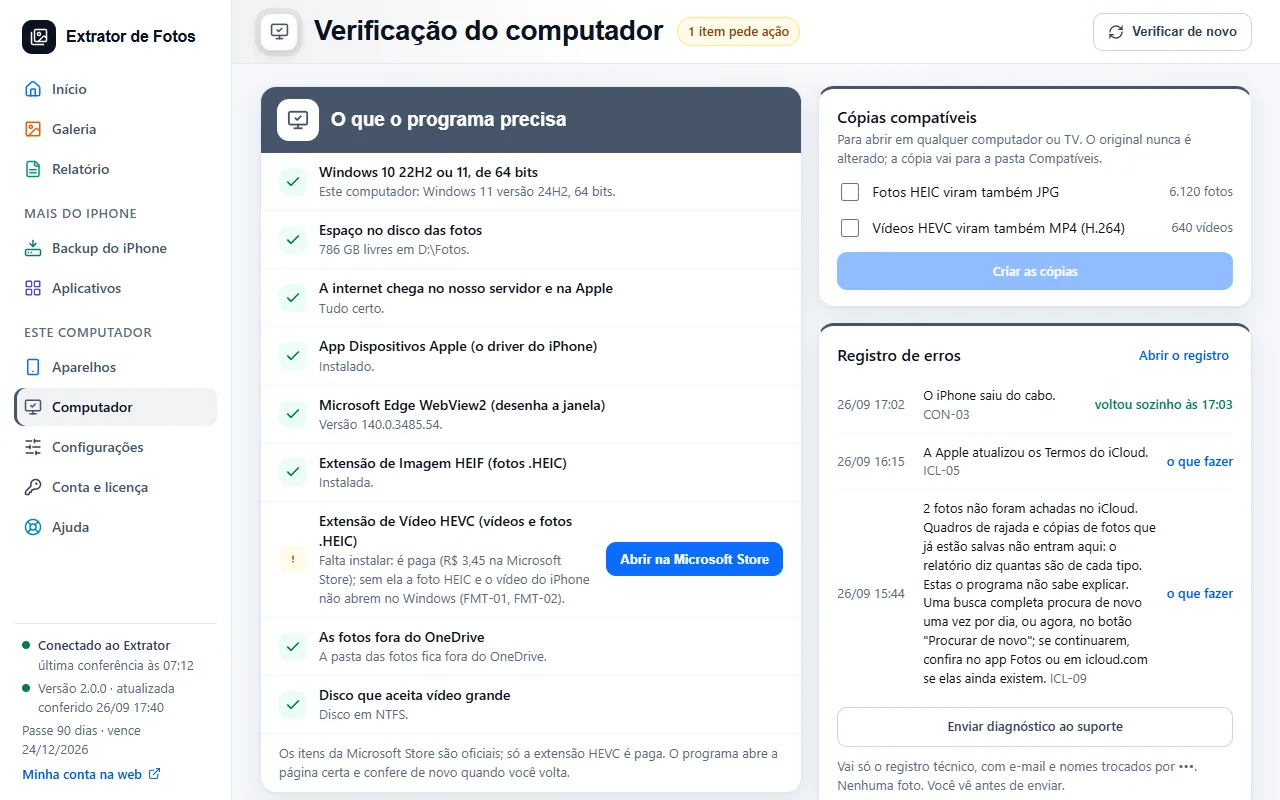 Check the computer before copyingDisk space, OneDrive, antivirus, and power: the program checks them first.3 steps
- Uninstall and reinstall without losing your photosWhere the program lives, how to uninstall and reinstall it, and what stays saved. Your photos are never deleted.10 steps
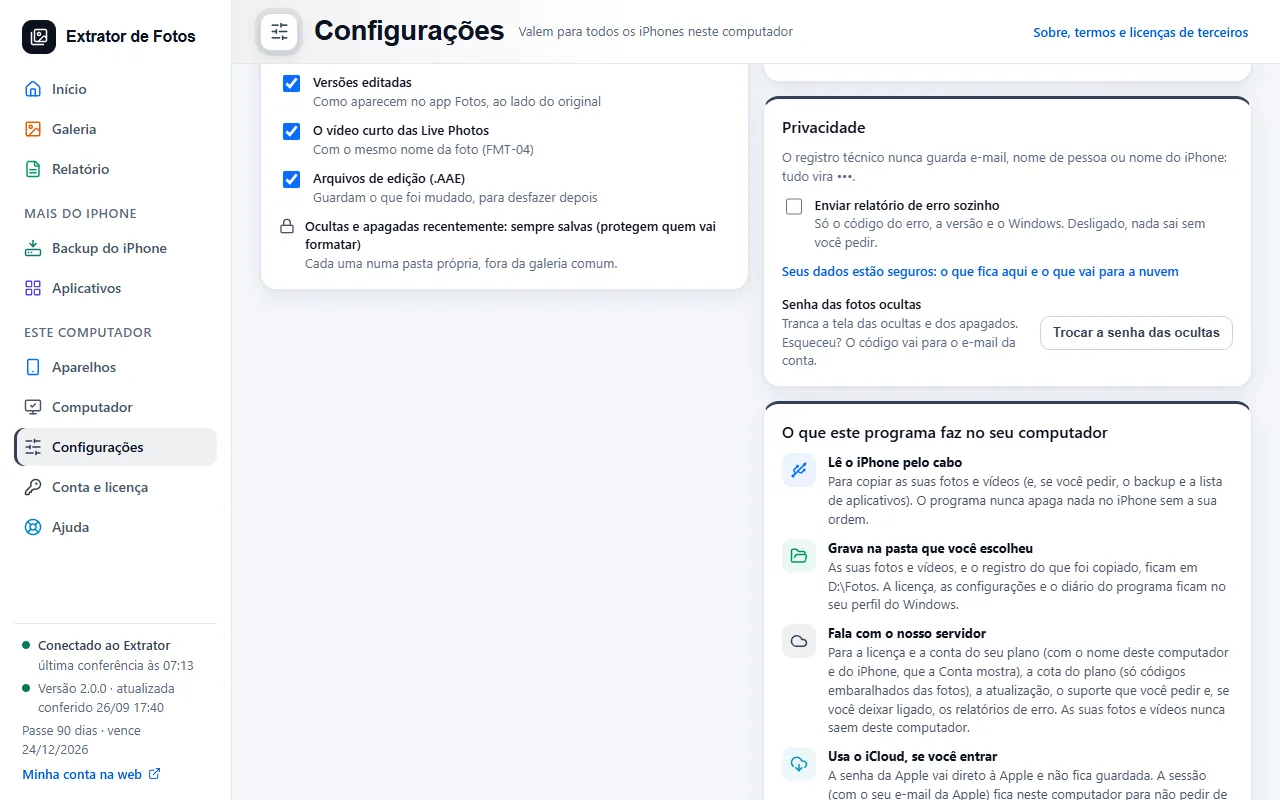 What this program does on your computerIn Settings, a panel says in six lines what the program does on this computer and why, including what never leaves it: your photos and videos.7 steps
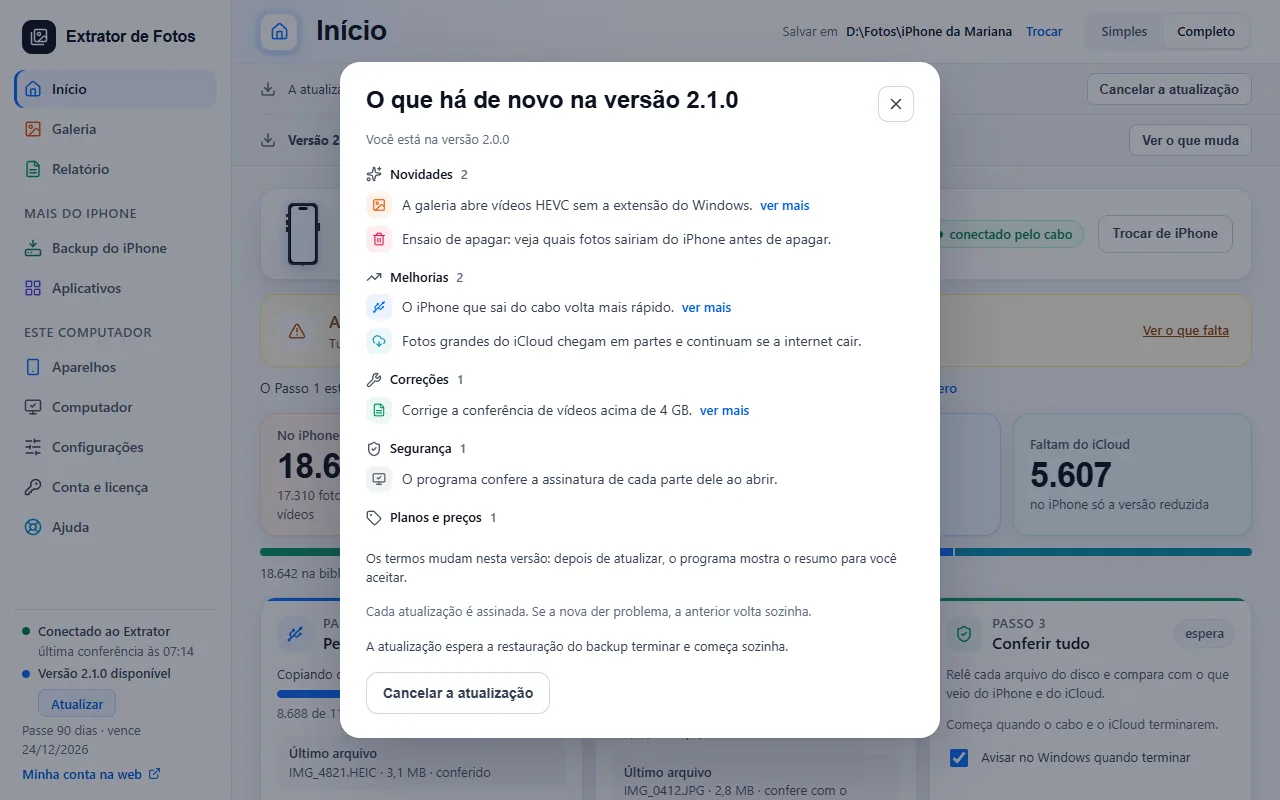 Updating the program safelyEvery update is signed, waits for the right moment and, if something goes wrong, the previous one comes back.9 steps
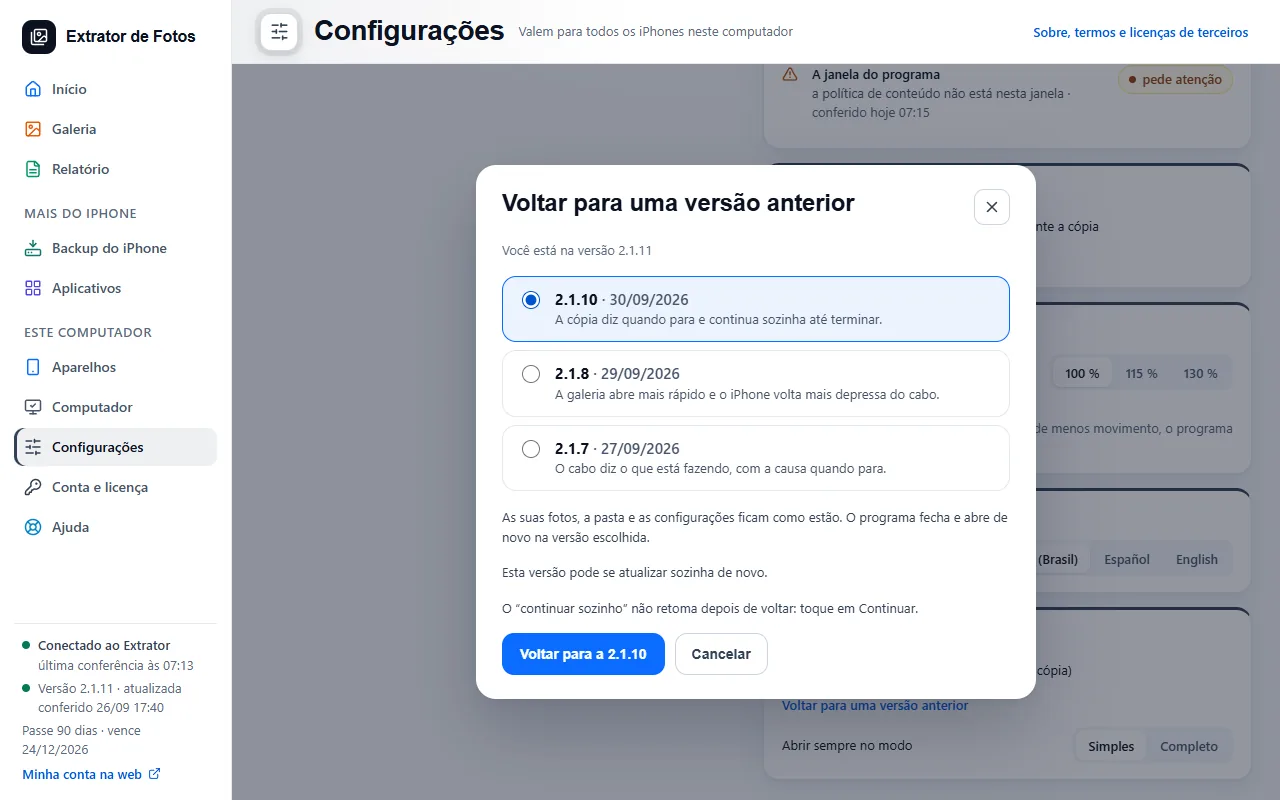 Going back to an earlier versionIf the new version doesn't work for you, the program goes back to an earlier version the team published. Your photos, the folder and the settings stay as they are.10 steps
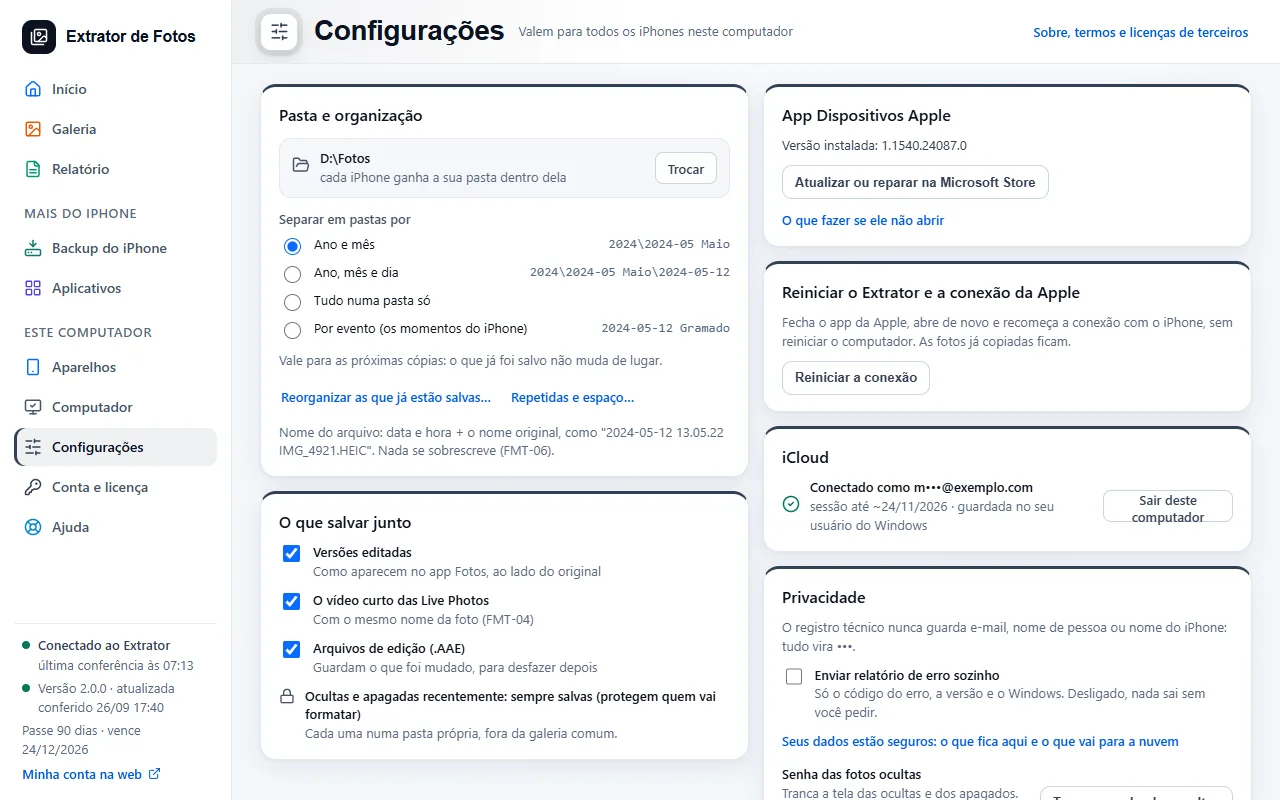 The program's settingsFolder, what to save along with the photos, iCloud, privacy, power, reading and updates: what each one changes.7 steps
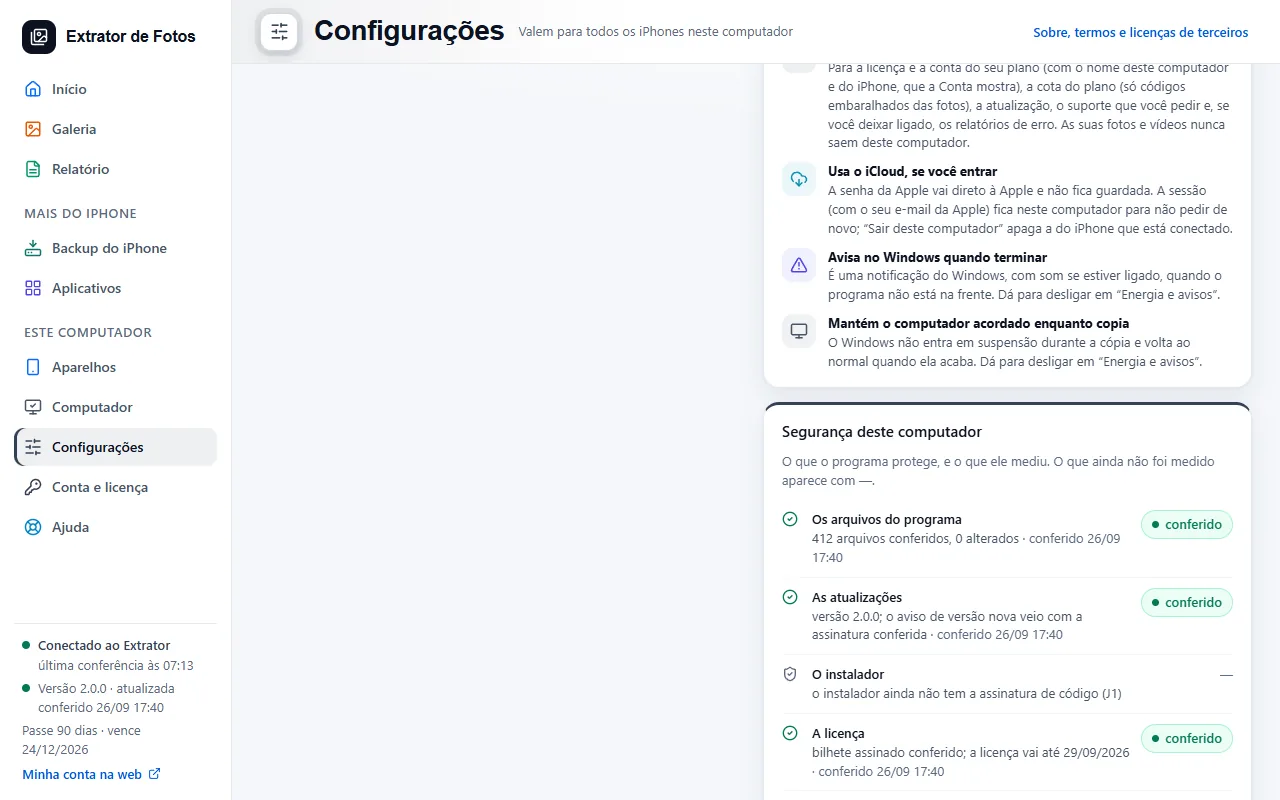 The “This computer's security” panelAt the end of Settings, the panel shows what the program protects and what it measured. What hasn't been measured yet shows with a dash.5 steps
Error codes in this topic
The code shows up on the program's screen. Each one has the cause and what to do.
DIS-01The drive filled up in the middle of the copyDIS-02The external hard drive disconnected in the middle of the copyDIS-03The iPhone or iPad backup fails because the C: drive is out of spaceDIS-04File path too long in WindowsDIS-05The antivirus deleted or blocked the programDIS-06“Windows protected your PC” when opening the installerDIS-07Computer without administrator permissionDIS-08The program window opens blankDIS-09The license and the internet fail because of the computer's clockDIS-10The computer went to sleep and the copy stoppedDIS-11The destination folder is inside OneDriveDIS-12Extrator won't install on Windows 7, 8 or 8.1DIS-13You need to update Windows 10 to version 22H2DIS-14This computer's Windows is 32-bitDIS-15Computer with an ARM processor (Snapdragon)DIS-16Not enough disk space to installDIS-17This computer is low on memoryDIS-18“The PDF couldn't be created on this computer”DIS-19“The folder for this iPhone or iPad is no longer where it was”DIS-20Windows did not let Extrator de Fotos open (Smart App Control)ATU-01The program update won't downloadATU-02Update refused for security reasonsATU-03The new version came with a bugATU-04The program was installed with a part missing (fixed)ATU-05A new iOS changed how the photos are readATU-06This version was turned off by the team. Update to continueATU-08“The update didn't finish and the program went back to the previous version”ATU-09“The update was canceled: the copy didn't stop in time”ATU-10“The program is updating: wait for it to reopen”ATU-11“Can't go back to that version”ATU-12“This version doesn't update from the program”ATU-13“The update is already in progress”ATU-14“The update has already started installing and can no longer be canceled”MOD-01This module is not installed on this computer yetMOD-02The module could not be downloaded right nowMOD-03The module file did not pass the security checkMOD-04This module is for another version of the programMOD-05There is no disk space to download the moduleMOD-06The license for this module needs to be confirmed again on this computerMOD-07The new version of the module did not open, and the program went back to the previous oneMOD-08We are updating the keys of this computerMOD-09This module is under maintenance; your access remains
Still not fixed? Contact support
The team replies by email and in the customer area. In the program: Help. The error code goes along.