Updating the program safely
Every update is signed, waits for the right moment and, if something goes wrong, the previous one comes back.
Step by step
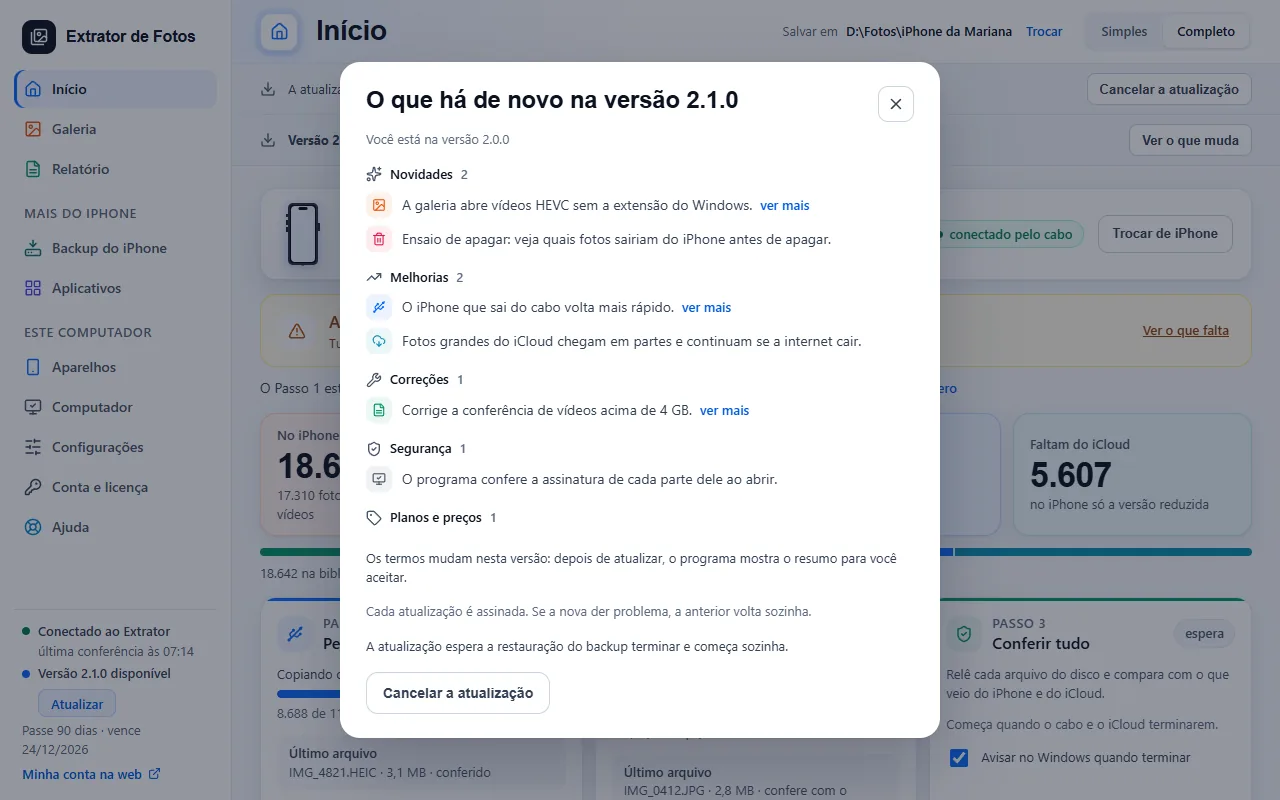
Before updating, the program shows what is new in the version and, if the terms change, the summary for you to accept afterwards.
Every update is signed. If the new one has a problem, the previous one comes back on its own.
The new version shows up in a card at the top of the screen, with what changes. With “Download updates automatically” turned on, it comes already downloaded, but installing always waits for your click: nothing is installed until you tap “Update now”. “Later” hides the card until you open the program again.
“Update now” downloads and checks the new version and, with a copy running, stops the copy and safely disconnects the iPhone before installing. The screen shows the steps in order: “Downloading and checking the new version…”, “Stopping the copy…”, “Safely disconnecting the iPhone…” and “Installing the new version. The program opens by itself in a moment.” When it reopens, the program continues where it left off. The iPhone shows nothing when it disconnects.
If a backup, a backup restore, a photo deletion or a reorganization is in progress, the update waits for it to finish and starts by itself, and the screen shows what it is waiting for. There is also a “Cancel the update” button, in the dialog and in a gray banner, and it only exists while the update is waiting: once it starts stopping the copy, there is no going back.
If the installer doesn't finish, the previous program reopens by itself, resumes the copy where it left off and shows the banner “The update didn't finish and the program went back to the previous version”, with the code ATU-08. Tap “Got it”: the update stays available in “See what changes”.
If the failure comes before the installation (the version didn't download, the signature was refused or the copy didn't stop in 60 seconds), the dialog shows the cause.
The photos already saved stay in the folder and open normally. Nothing is deleted.
Through the Microsoft Store: open the Store › Library › Get updates. Then open the Extrator again.
If an error shows up
The code shows up on the program's screen. Each article has the cause and the fix.
More in Installing and your computer
Still not fixed? Contact support
The team replies by email and in the customer area. In the program: Help. The error code goes along.