What this program does on your computer
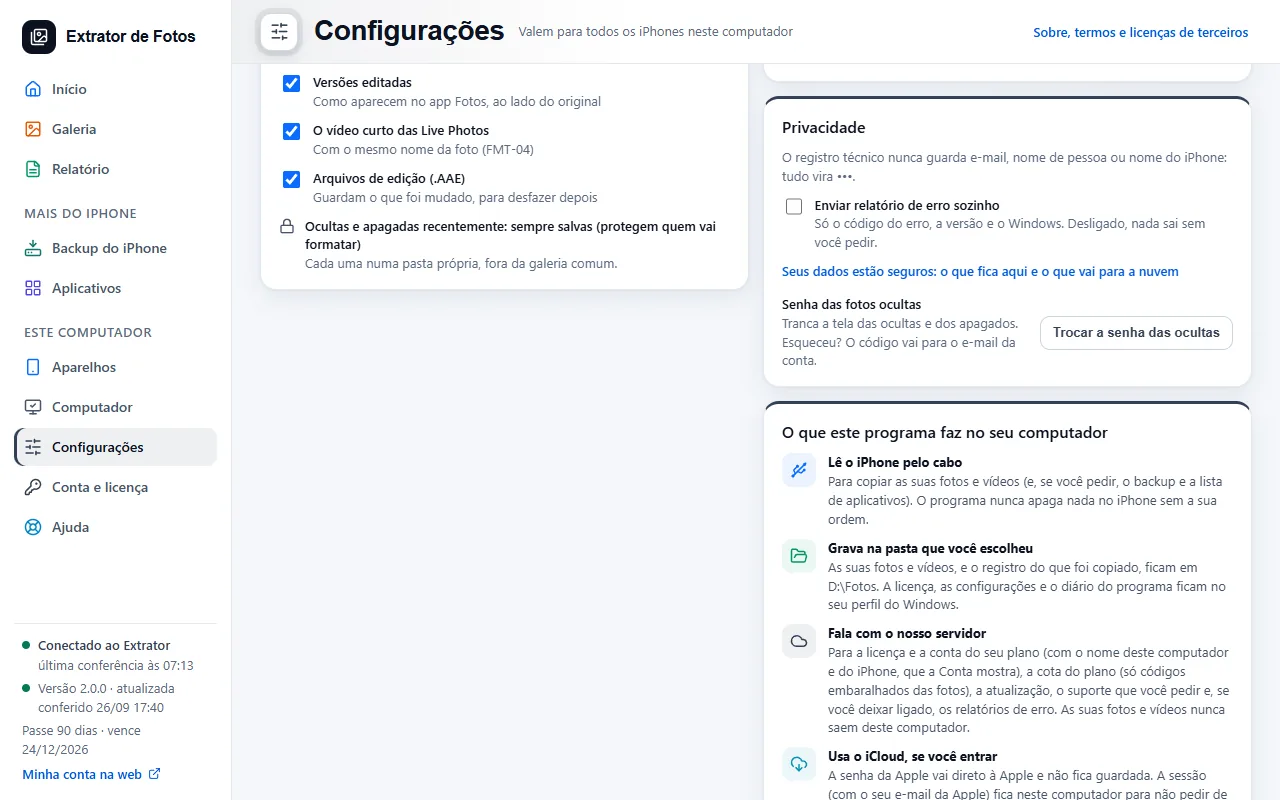
In Settings, a panel says in six lines what the program does on this computer and why, including what never leaves it: your photos and videos.
Step by step
Open “Settings” and scroll to the “What this program does on your computer” panel.
“Reads the iPhone over the cable”. To copy your photos and videos (and, if you ask, the backup and the list of apps). The program never deletes anything on the iPhone without your say-so.
“Saves to the folder you chose”. Your photos and videos, and the record of what was copied, stay in that folder. The license, the settings and the program log stay in your Windows profile.
“Talks to our server”. For the license and your plan account (with the name of this computer and of the iPhone, which Account shows), the plan quota (only scrambled codes of the photos), updates and the support you ask for. An error report only goes out when you tap Send it to us (or if you turn on automatic sending); with the email notice on, only a minimal summary of the finished copy goes out, to send you the email. If you ask to measure the internet, the program downloads a test file from Cloudflare (speed.cloudflare.com). Apart from the internet address every request carries, nothing of yours is sent. Your photos and videos never leave this computer.
“Uses iCloud, if you sign in”. The Apple password goes straight to Apple and is not stored. The session (with your Apple email) stays on this computer so it does not ask again; “Sign out on this computer” removes the one for the connected iPhone.
“Notifies you in Windows when it finishes”. It is a Windows notification, when the program is not in front. You can turn it off in “Power and notifications”.
“Keeps the computer awake while it copies”. Windows does not go to sleep during the copy and goes back to normal when it ends. You can turn it off in “Power and notifications”.
More in Installing and your computer
Still not fixed? Contact support
The team replies by email and in the customer area. In the program: Help. The error code goes along.