The program's settings
Folder, what to save along with the photos, iCloud, privacy, power, reading and updates: what each one changes.
Step by step
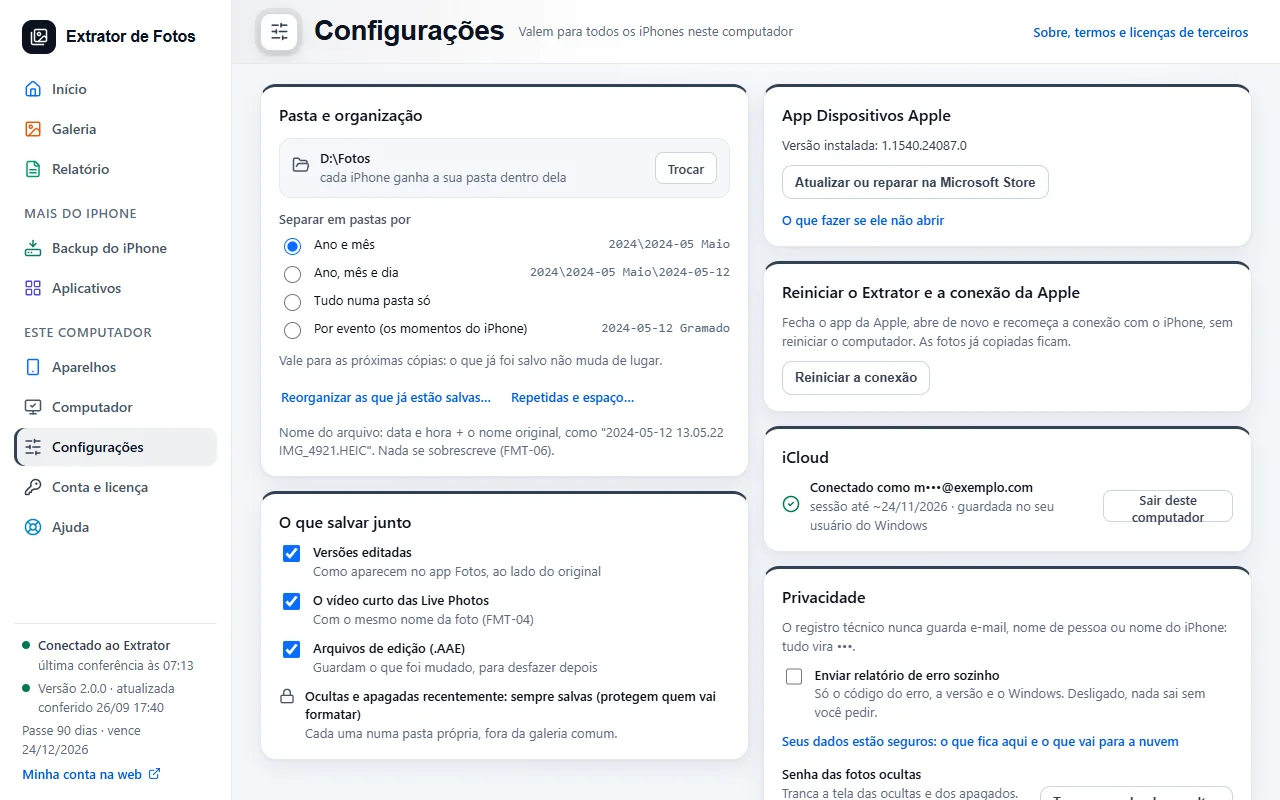
They apply to every iPhone on this computer. In “Folder and organization”, the “Change” button, next to the folder, changes where the photos go: each iPhone gets its own folder inside it. If the folder is in OneDrive, the program warns you.
In “Split into folders by”, choose “Year and month”, “Year, month and day” or “Everything in one folder”. It applies to the next copies: what was already saved doesn't move.
In “What else to save”, choose whether to keep the edited versions, the short Live Photo video and the edit files. Hidden and recently deleted photos are always saved: they protect whoever is about to format.
In iCloud, “Sign in to iCloud” only appears when there is no session and brings the photos that are only there; with a session open, “Sign out on this computer” appears, which deletes the session stored on this computer.
In “Privacy”, “Send error reports automatically” starts turned off on new installs (if you had already chosen, your choice stays). When it's off, an error report only goes out when you click “Send it to us” on the error notice. It includes the error code, the version, Windows and the part of the program where the error happened, with paths, emails and device names hidden. The one exception is the email notice: with “Email me when the copy finishes” on (in “Power and notifications”), only a minimal summary of the finished copy goes out, with no names and no photos, to send you the email.
Also in “Privacy”: the program's errors reach us anonymously, to improve the program, with no box to turn it off. Only the error code, the screen, the version, Windows and the device model and iOS are sent; no photos, no names and nothing linked to your account.
In “Power and notifications”, the computer doesn't sleep during the copy, and Windows notifies you when it finishes.
In “Updates and startup”, “Download updates automatically (installing always waits for your click)” and “Start with Windows”: for the first 30 days after installing, the program opens with Windows to remind you to plug in the iPhone; turn it off here, or turn it on to open every time. The program always opens in Simple mode.
More in Installing and your computer
Still not fixed? Contact support
The team replies by email and in the customer area. In the program: Help. The error code goes along.