Going back to an earlier version
If the new version doesn't work for you, the program goes back to an earlier version the team published. Your photos, the folder and the settings stay as they are.
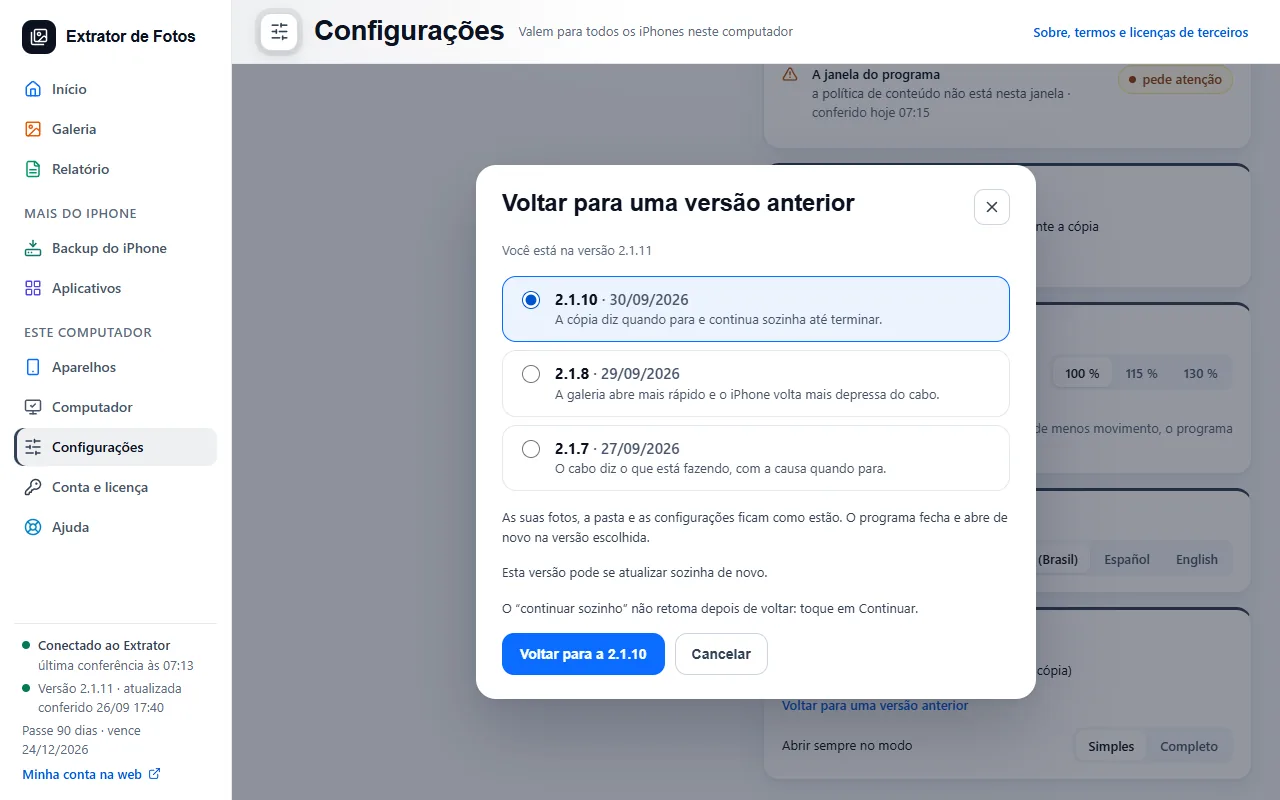
Step by step
Open “Settings”, the “General” tab, and in the “Updates and startup” section, tap “Go back to an earlier version”. If you installed from the Microsoft Store you won't see this button: the version is the Store's.
The window shows the version you have and up to 3 earlier versions, each with its date and one line about what it brought. Only versions the team published and that are still valid show up: a version that was turned off does not appear. The list comes from the internet right then; without a connection it doesn't open and nothing changes.
The screen says “There is no earlier published version to go back to.” when there is nowhere to go back to.
Pick a version. While none is picked, the button says “Pick a version”; then it shows the number of the one you picked (for example, “Go back to 2.1.10”).
Before you confirm, the screen says: “Your photos, the folder and the settings stay as they are. The program closes and opens again on the chosen version.” Nothing in the folder changes.
One line says what happens with updates. On 2.1.11 or newer: “After going back, the program does not update itself: the new-version notice stays and you choose when to update.” On a version older than 2.1.11, which doesn't know about this choice: “This version may update itself again.” On those, the screen also warns: The “keep going by itself” option does not resume after going back: tap Continue.
If a copy is running: “If a copy is running, the program stops it, disconnects the iPhone safely and reopens by itself on the chosen version.” The steps are the same as “Update now”: it downloads and checks the chosen version, stops the copy, disconnects the iPhone and installs. If a backup, a restore, a deletion or a reorganization is in progress, going back waits for it to finish, and “Cancel the update” gives up while it waits.
When you go back to 2.1.11 or newer, the banner at the top says “Went back to” and the version number, and the program picks up where it left off. Versions older than 2.1.11 open as they always did.
Every version comes signed, just like an update: if the signature doesn't match, nothing is changed (ATU-02). If the installer doesn't finish, the previous program reopens by itself (ATU-08). Starting with version 2.1.13, if the chosen version can no longer be used to go back, the screen says “Can't go back to that version” (ATU-11), and nothing is stopped or installed.
To return to the newest version, use “See what changes” and update, as with any update. The program never changes version on its own: only when you pick and confirm.
If an error shows up
The code shows up on the program's screen. Each article has the cause and the fix.
More in Installing and your computer
Still not fixed? Contact support
The team replies by email and in the customer area. In the program: Help. The error code goes along.