Freeing up space on the iPhone
The way to do it without deleting anything and, to delete, the month-by-month list of what is already saved on this computer.
Step by step
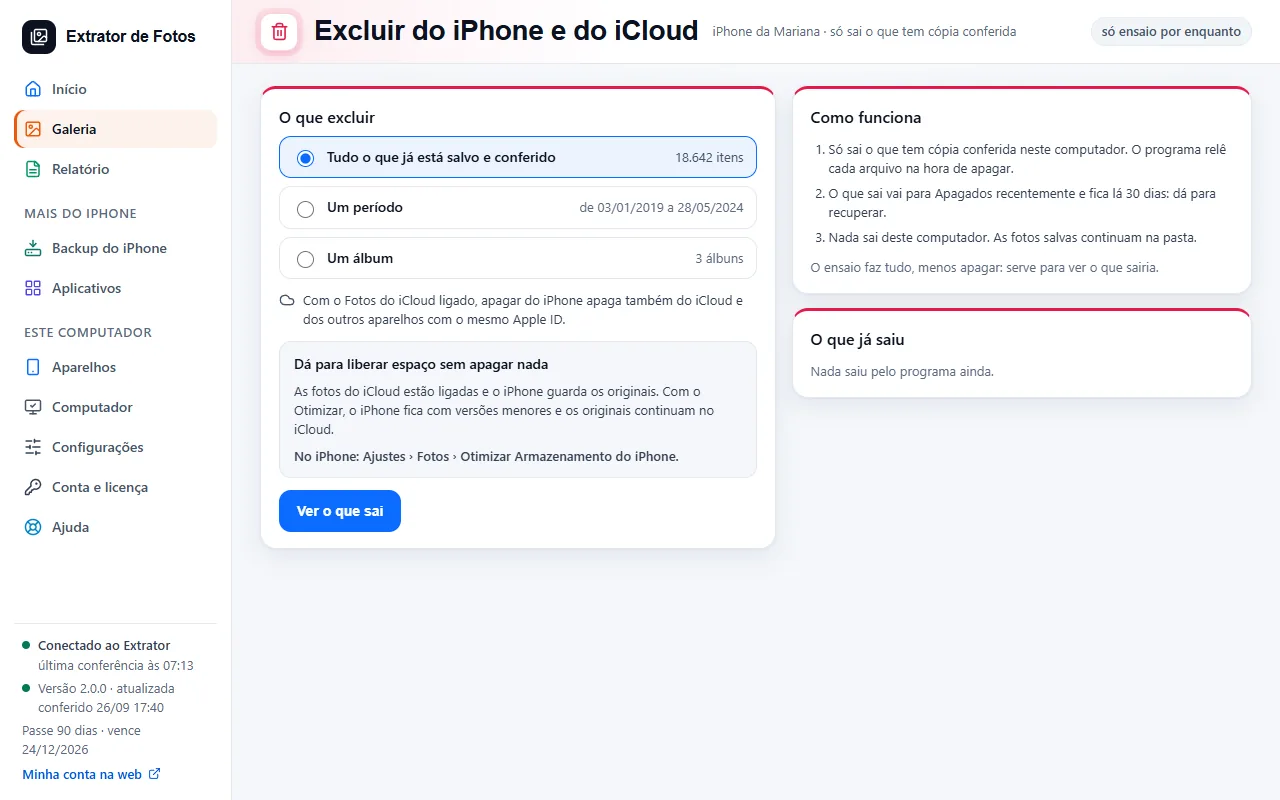
With iCloud Photos on, you can free up space without deleting anything: on the iPhone, Settings › Photos › Optimize iPhone Storage. The iPhone keeps smaller versions, and the originals stay in iCloud.
If the iPhone already keeps smaller versions, deleting a photo on it also deletes it from iCloud and from all your devices.
On the Delete screen, the program has two modes. With a safe path for your iOS, the title is “Delete from iPhone and iCloud”, with the “for now, only shows what would be removed” tag and the “See what gets removed” button. Without a safe path, it becomes “Delete on the iPhone itself”, with 3 steps and the list “Month by month: what is already saved on this computer”.
To really delete, the month-by-month list shows how many photos of each month are already saved on this computer and how many are missing.
In the Photos app the selection is by date: “you can delete the whole month” is a complete month, and “do not delete the whole month” has a photo missing.
The space comes back when the photos leave Recently Deleted: 30 days, or right away if you empty it.
The program doesn't delete anything on your iPhone by itself: in Delete, “See what gets removed” only shows the dry run. You are the one who deletes, on the iPhone.
If an error shows up
The code shows up on the program's screen. Each article has the cause and the fix.
More in Delete and erase
- When it's safe to erase the iPhone
- Before erasing: what isn't photos
- Delete through the program (for now, only the dry run)
- Have a copy of your photos that doesn't depend on iCloud
- Recovering deleted photos: what comes back and what doesn't
- Why is my iPhone still full after copying and deleting the photos?
- The transfer receipt
- The Before formatting list: what each color means
Still not fixed? Contact support
The team replies by email and in the customer area. In the program: Help. The error code goes along.