The Before formatting list: what each color means
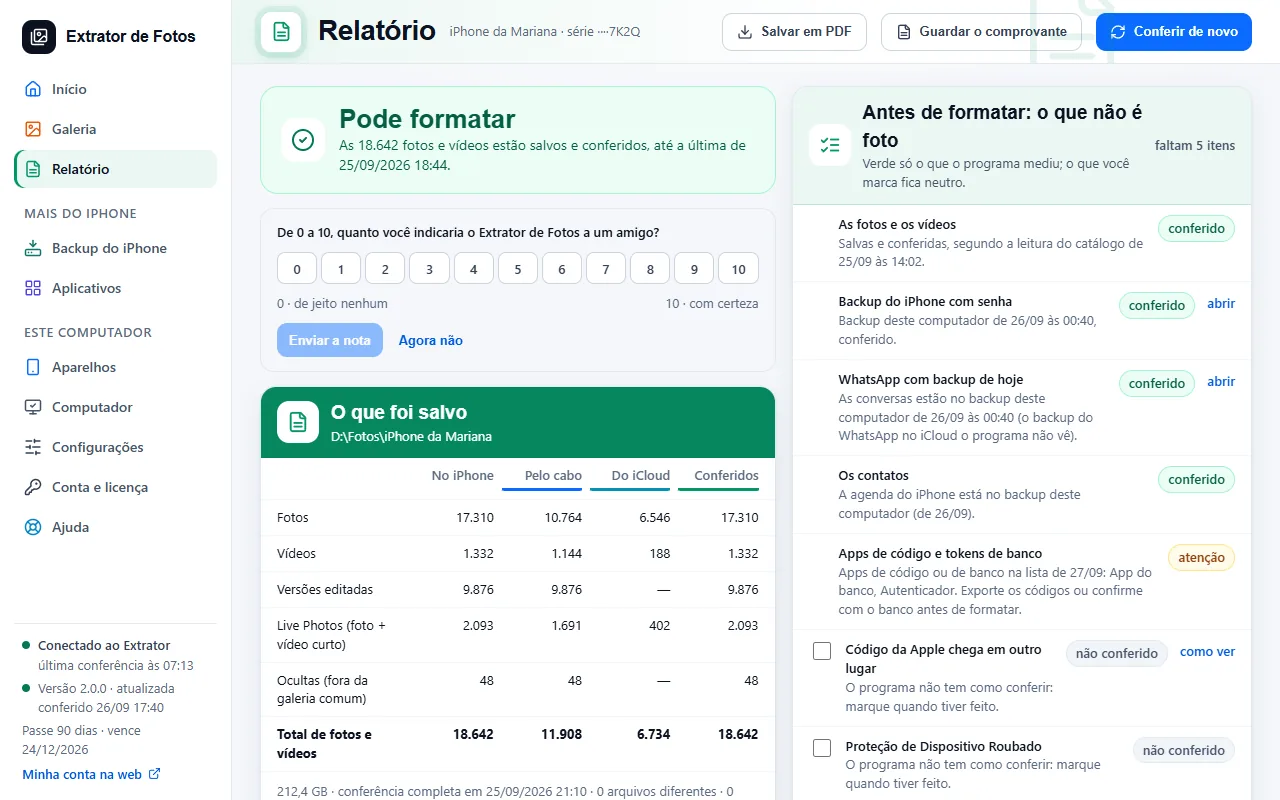
Photos, backup, WhatsApp, contacts and code apps in a single list. Green only for what the program measured.
Step by step
The list opens in the Report, in the right-hand column: “Before you erase: what is not a photo”. On Home it is a shortcut (for example, “3 of 8 items checked”), and the green “Safe to erase” card has “See the list”. In Simple mode, it is the link on the ready screen that starts with “Before you erase: what is not a photo”.
The program measures what it can and says when the measurement is from. What it can't measure, you tick as done.
“checked” (green): the program measured it now, or in a dated measurement that it shows.
“attention”: the program measured a risk, such as an installed code app, which needs a step from you before erasing.
“you ticked”: the program has no way to measure it, and you ticked it as done. It stays neutral, never green.
“not checked”: nobody measured it and you didn't tick it.
This list doesn't change the Safe to format for the photos: they are two rulers.
More in Delete and erase
- When it's safe to erase the iPhone
- Before erasing: what isn't photos
- Delete through the program (for now, only the dry run)
- Have a copy of your photos that doesn't depend on iCloud
- Recovering deleted photos: what comes back and what doesn't
- Why is my iPhone still full after copying and deleting the photos?
- The transfer receipt
- Freeing up space on the iPhone
Still not fixed? Contact support
The team replies by email and in the customer area. In the program: Help. The error code goes along.