Why is my iPhone still full after copying and deleting the photos?
A deleted photo stays in Recently Deleted for 30 days, and apps keep data and cache that don't go away with the photos. See where the space is and what you can free up.
Step by step
See what is taking up the space: on the iPhone, in Settings › General › iPhone Storage, you see the free space and the list of apps with how much each one uses (Apple, “How to check the storage on your iPhone and iPad”).
A deleted photo doesn't leave right away: it stays in the Recently Deleted album of the Photos app for 30 days, and it still takes up space. To free it now, open the album, tap Select and delete them all (Apple, “Delete and recover photos and videos”).
Empty that album only after the program's Report says “Safe to erase”: what leaves Recently Deleted doesn't come back. With iCloud Photos turned on, deleting on the iPhone also deletes in iCloud and on your other devices.
Apps keep data and cache that don't go away when you delete the photos: Instagram keeps what you have already seen, and WhatsApp keeps the photos, videos and voice messages of your chats. In iPhone Storage, tap the app to see how much it takes up.
There are two different options there. Offload App frees up the app's space, but keeps its documents and data. Delete App removes the app and its data.
To clear Instagram's cache, delete the app and download it again from the App Store; then sign in with your password. Don't delete WhatsApp without a backup: the chats go with it. In WhatsApp, the cleanup happens inside the app, in Settings › Storage and Data › Manage Storage.
The rest belongs to the iPhone itself. In iPhone Storage, it shows up as iOS and System Data: the caches and logs that can't be deleted, Siri voices and the search index (Apple's page calls these two System and Other). This number varies, and the iPhone deletes temporary and cached files by itself when it needs space.
If the free space doesn't change right away, wait a little or restart the iPhone (Apple, “Restart your iPhone”). Restarting doesn't delete anything.
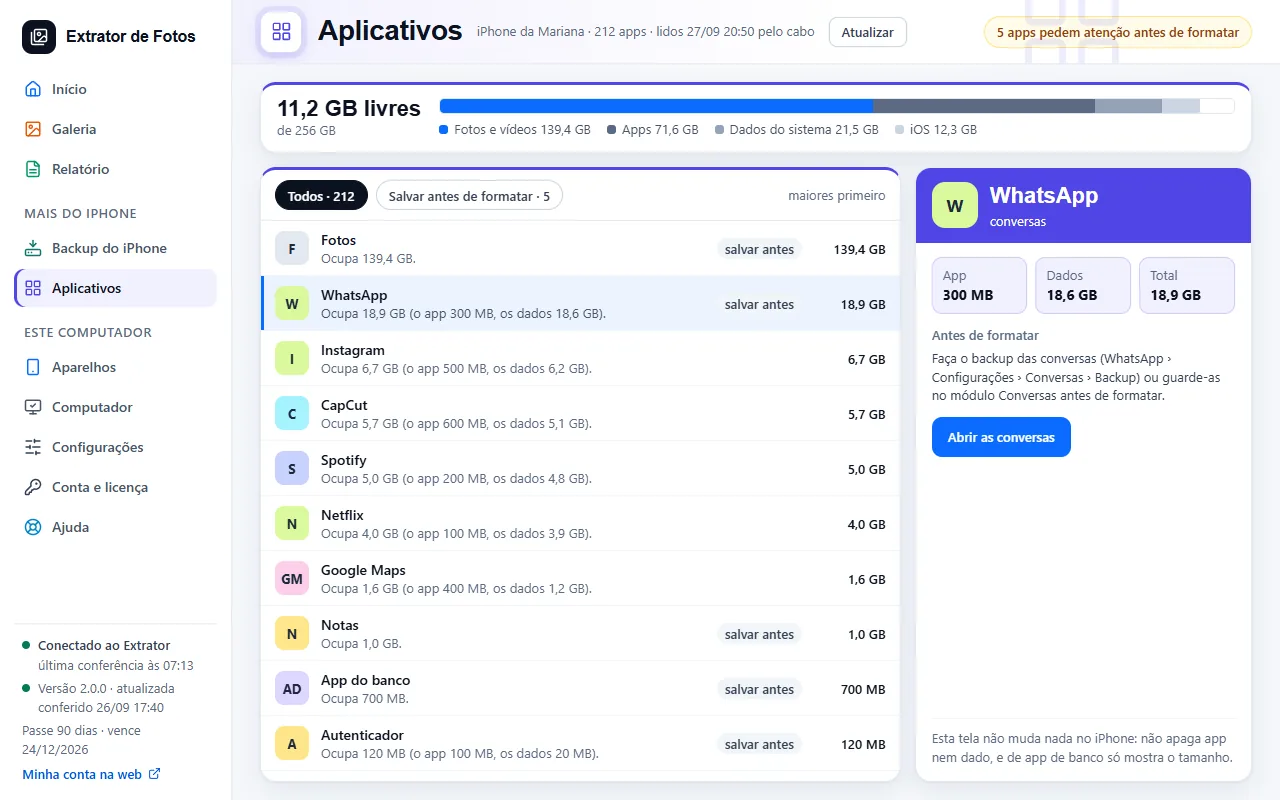
In the program, the Apps screen shows the same count: the iPhone's space and the apps from largest to smallest, with the size of the app and of its data. When the iPhone doesn't report how much the photos take up, they appear inside “System Data and photos”. There, you can also remove the apps that can go over the cable, one or several at once, each one checked on the iPhone.
From version 2.1.15 on, the Apps screen also has the “Why is the iPhone still full?” box, with what the program read from the iPhone: Recently Deleted (how many, how much space and when they go away), Only in iCloud, the apps with the most data and what the iPhone doesn't report, each one with the step to take on the iPhone. On Home, after “Safe to erase”, the shortcut “Is the iPhone still full? See why” takes you there. The box deletes nothing: each step is on the iPhone.
More in Delete and erase
- When it's safe to erase the iPhone
- Before erasing: what isn't photos
- Delete through the program (for now, only the dry run)
- Have a copy of your photos that doesn't depend on iCloud
- Recovering deleted photos: what comes back and what doesn't
- The transfer receipt
- The Before formatting list: what each color means
- Freeing up space on the iPhone
Still not fixed? Contact support
The team replies by email and in the customer area. In the program: Help. The error code goes along.