Creating the account inside the program
The free account is created in the program: your details, the terms, and the computer is activated right away.
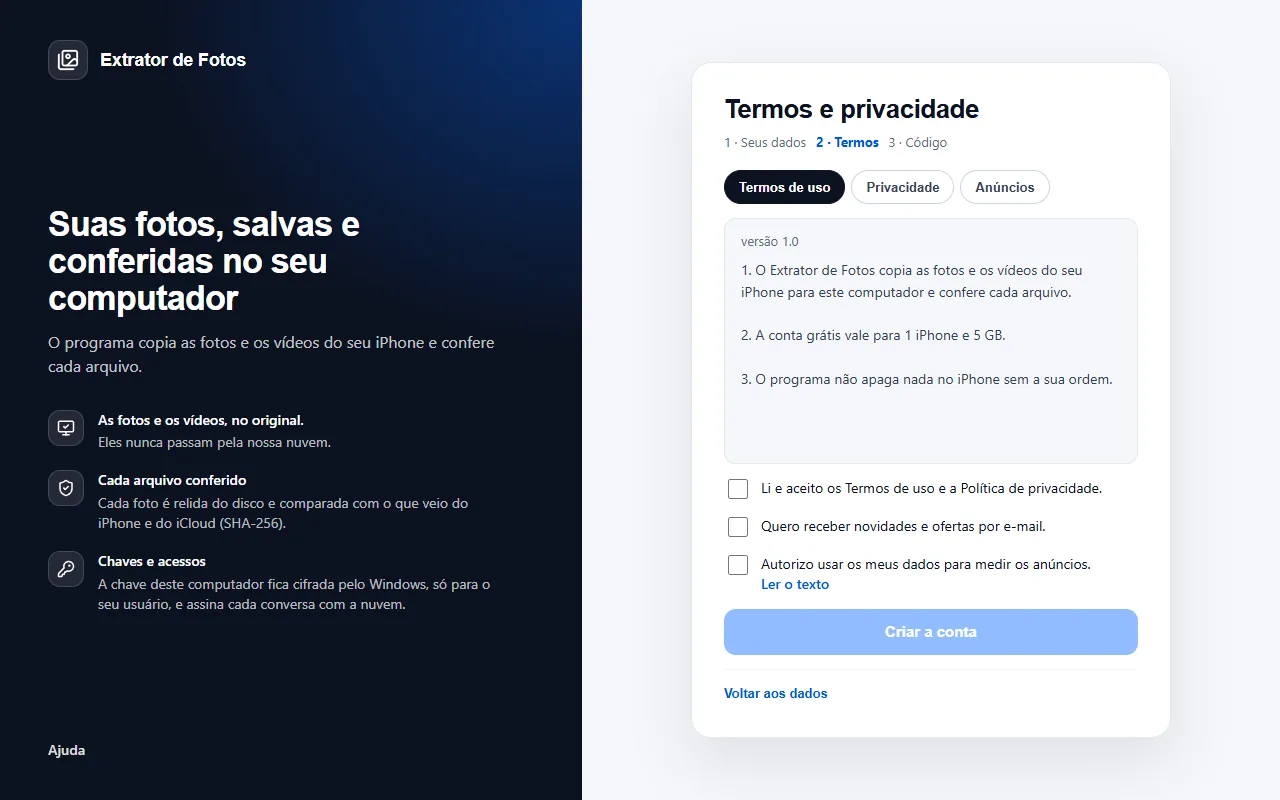
Step by step
On the sign-in screen, click “Create my account”.
Step 1, your details: name, email, phone (with the country) and, in the Portuguese sign-up, the CPF. The license is linked to your CPF; it is stored encrypted, and afterwards only part of it is shown.
Step 2, terms: read and tick “I have read and accept the Terms of use and the Privacy policy.” The boxes for news and for measuring ads are optional and come unticked.
Step 3, done: the account is created already activated on this computer. If the program asks for a code, type the 6-digit one that arrived in your email.
Done: this computer is now linked to your account.
If it says the CPF or the email already has an account, sign in with that account's email. If you don't remember which one, or if the code doesn't arrive, contact support.
In English and Spanish the sign-up doesn't ask for a CPF. To stop measuring ads later, turn it off in My data, in your account on the web.
If an error shows up
The code shows up on the program's screen. Each article has the cause and the fix.
More in Account and license
- Activate the license on the computer
- You reformatted or switched computers
- Lost, stolen, or sold computer
- Payment and refund
- How billing works
- What stays on the computer and what goes to the cloud
- Assistance mode: one service per customer
- The cloud does not respond, or the computer has no internet
- The program went back to the free plan
- Changed iPhones? Free up the spot on the license
Still not fixed? Contact support
The team replies by email and in the customer area. In the program: Help. The error code goes along.