Copy the photos
Save everything in the original, with every file verified, and open it in Windows.
Step by step
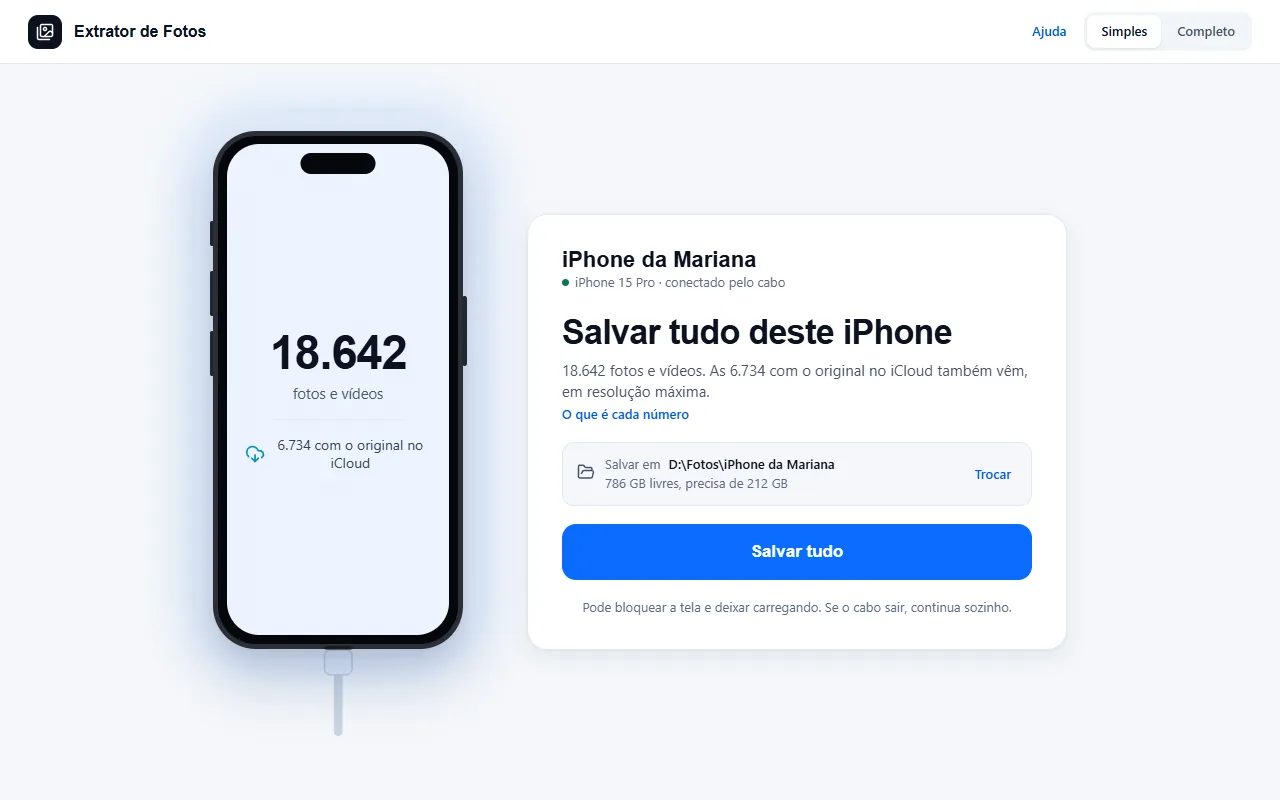 Save everything from the iPhoneSimple mode: one button, and the program brings the photos, the videos, and what's only in iCloud.4 steps
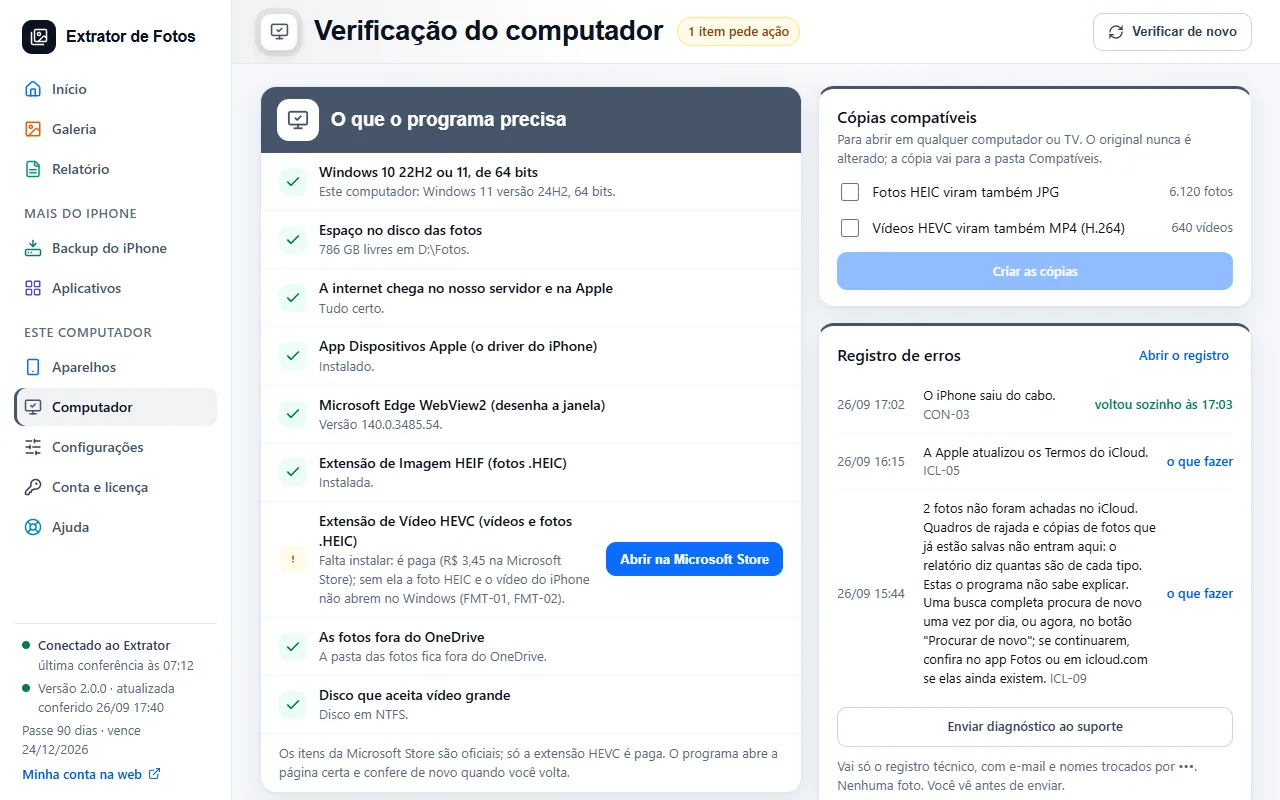 Open HEIC photos and HEVC videos in WindowsThe original comes the way the iPhone recorded it. To open it anywhere, there are two ways.3 steps
- Copying stops midwayWindows loses the iPhone along the way and the import starts over. The program continues from the last verified file.4 steps
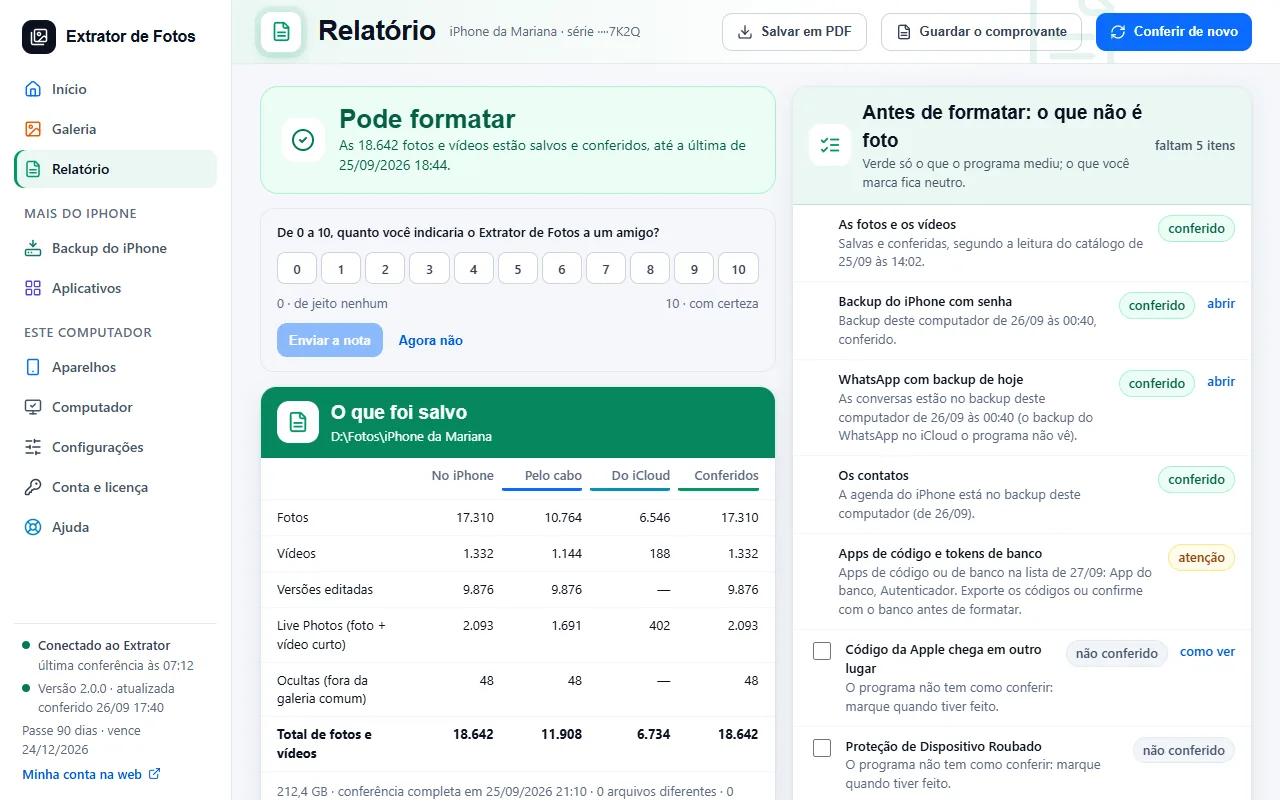 The photo arrives with gray areas or corruptedIt happens when the iPhone converts the photo while passing it to Windows. The program reads the original file, with no conversion.4 steps
- Copying is slowA cable with a Lightning connector runs at USB 2.0 speed. The program reads several files at the same time to make the most of the cable.4 steps
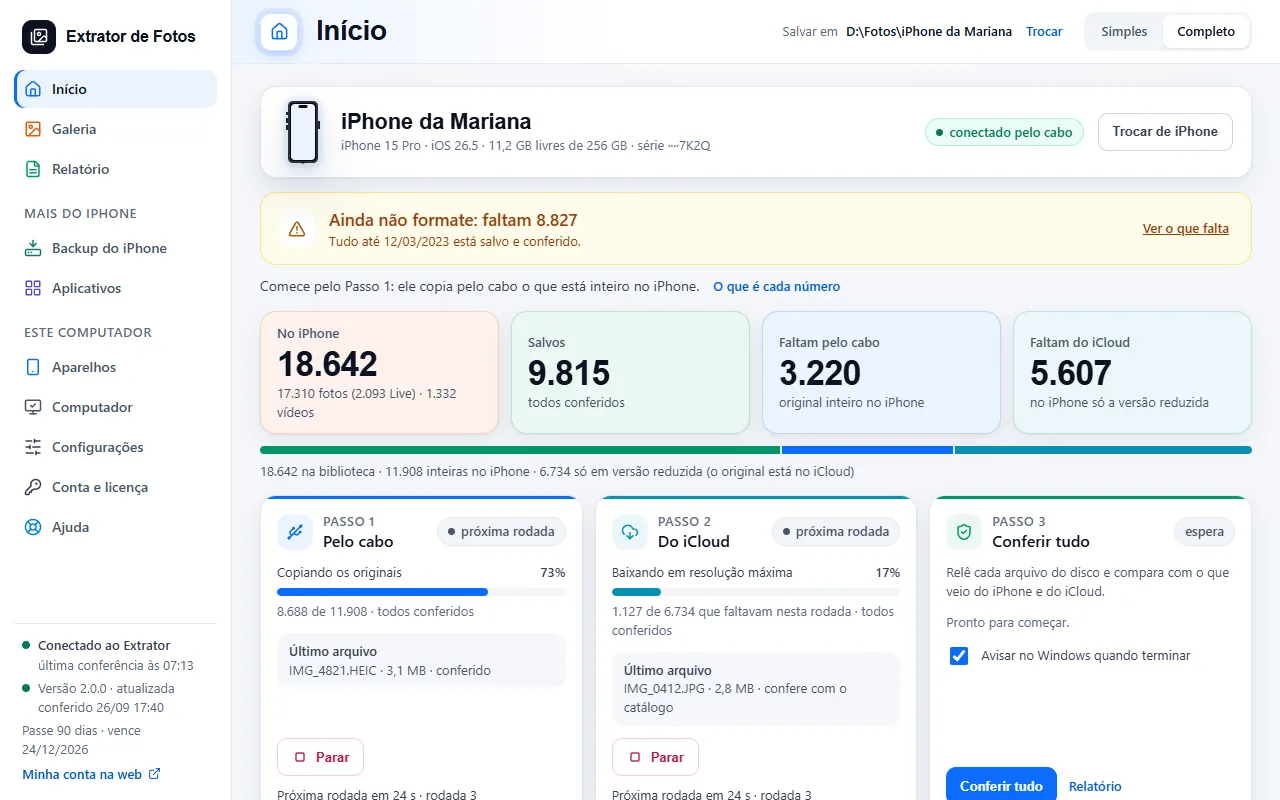 Copying keeps going on its own until it finishesYou click Save everything once. The program starts the next round, comes back when the internet drops, and at the end checks everything on its own.7 steps
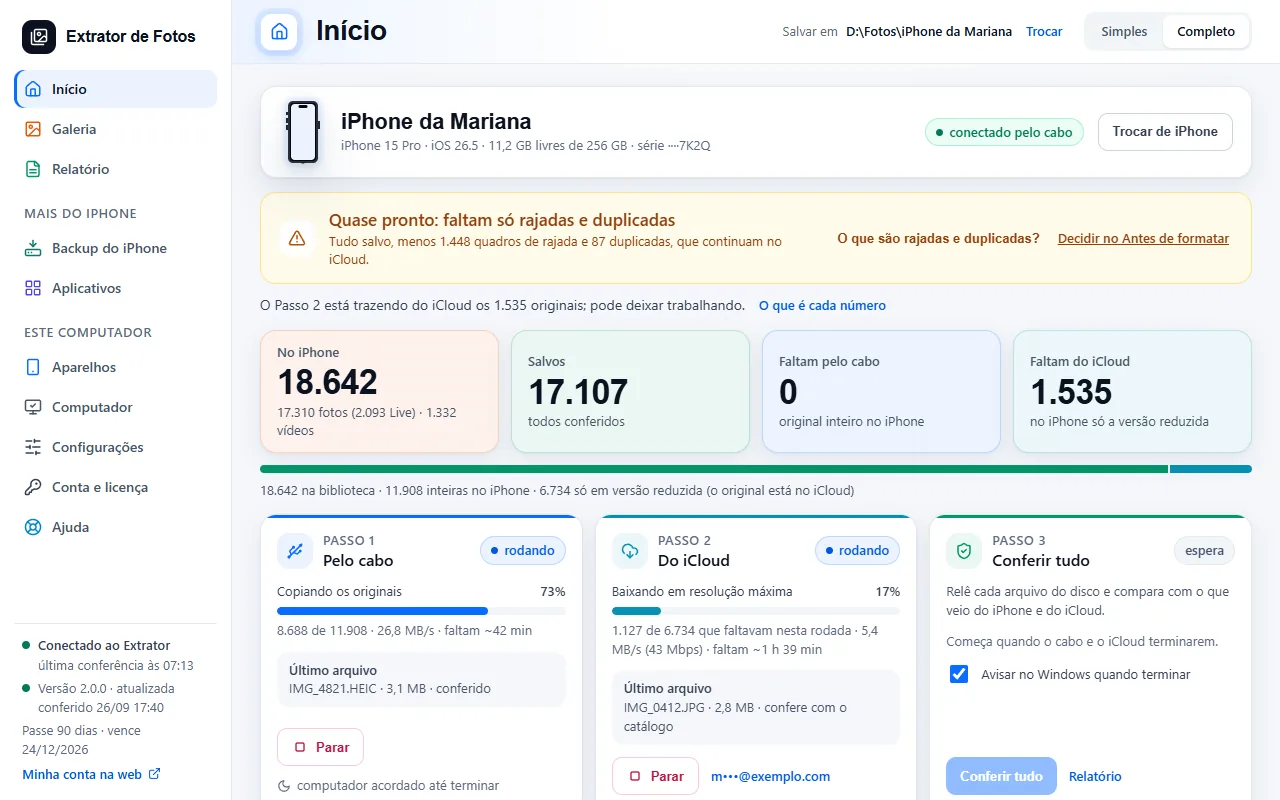 Almost done: burst photos and duplicatesWhen only burst frames and duplicates are missing, the program says “Almost done”. It is not a failure, and the decision to format is yours.6 steps
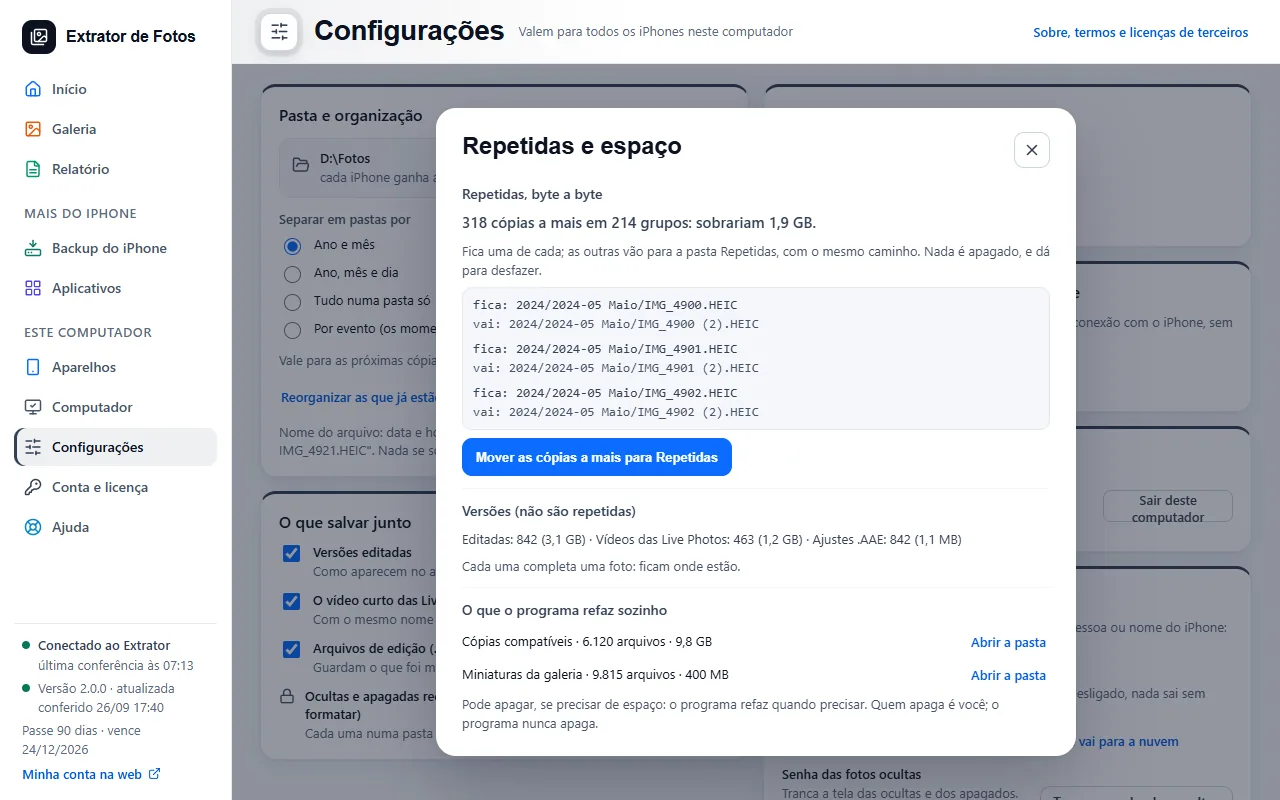 Duplicate photos and how much space you would get backThe program finds identical copies, byte by byte, and shows the space. Nothing is deleted: the extra copies move to a folder, and you can undo it.5 steps
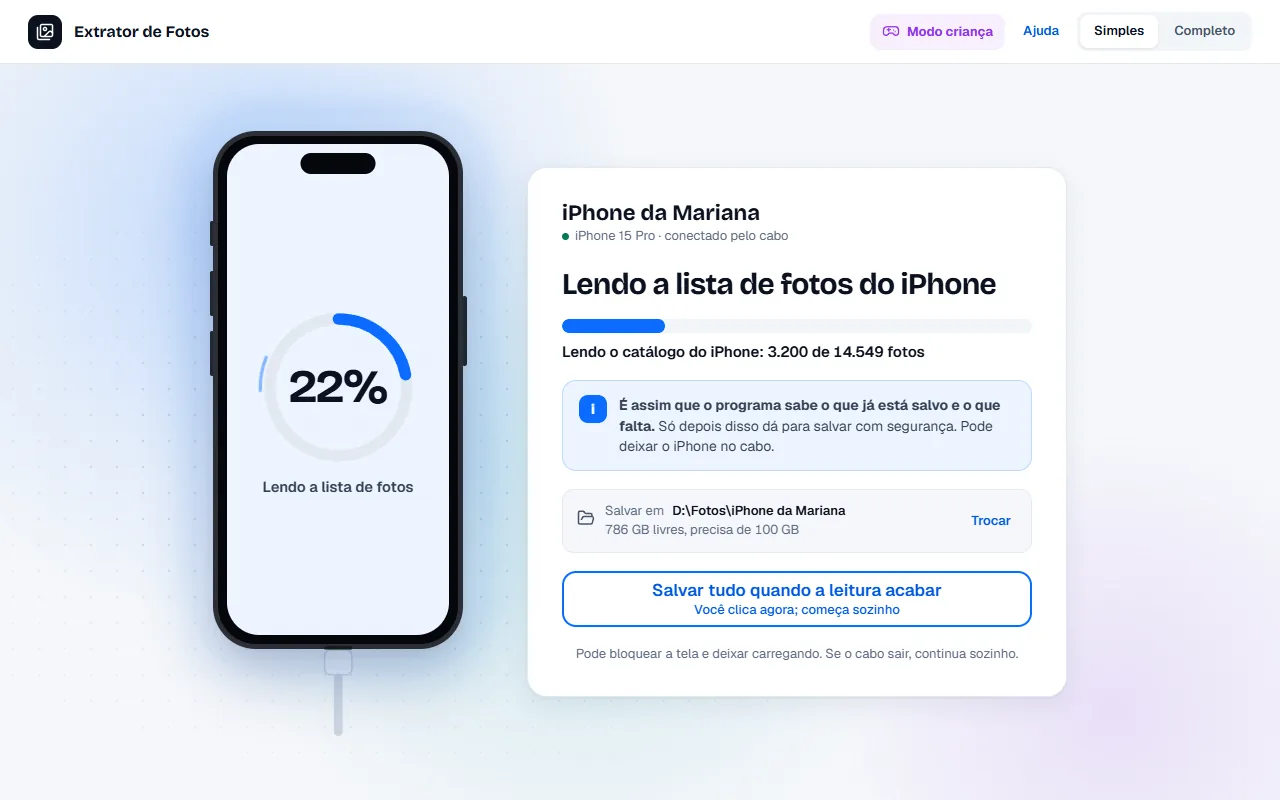 The program is reading the iPhone's photo listBefore copying, Simple mode reads the iPhone's photo list to know what is already saved and what is missing. You can ask for Save everything right away: it starts on its own when the reading ends.8 steps
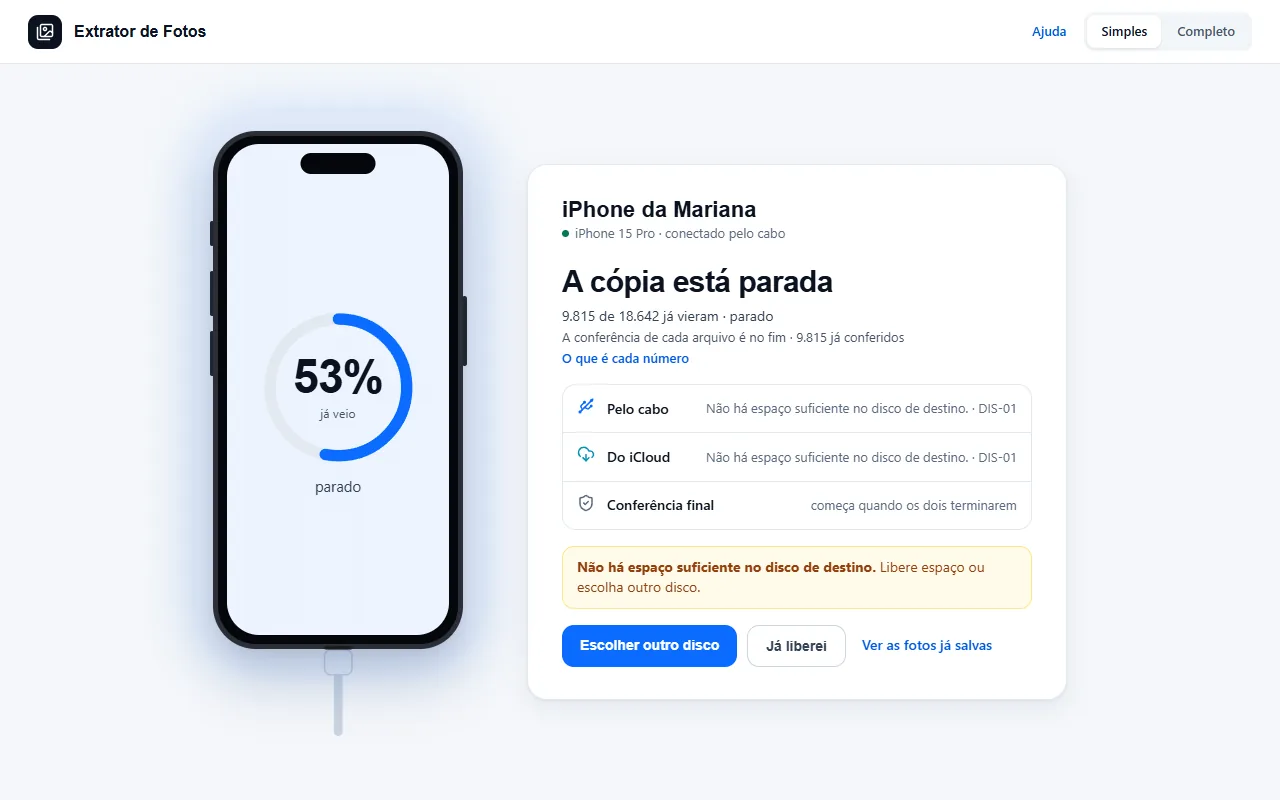 The drive got full in the middle of the copyWhen the photos drive fills up, the program stops at a safe point and nothing is lost. Free up space, or choose another drive, and the copy picks up from what is still missing.8 steps
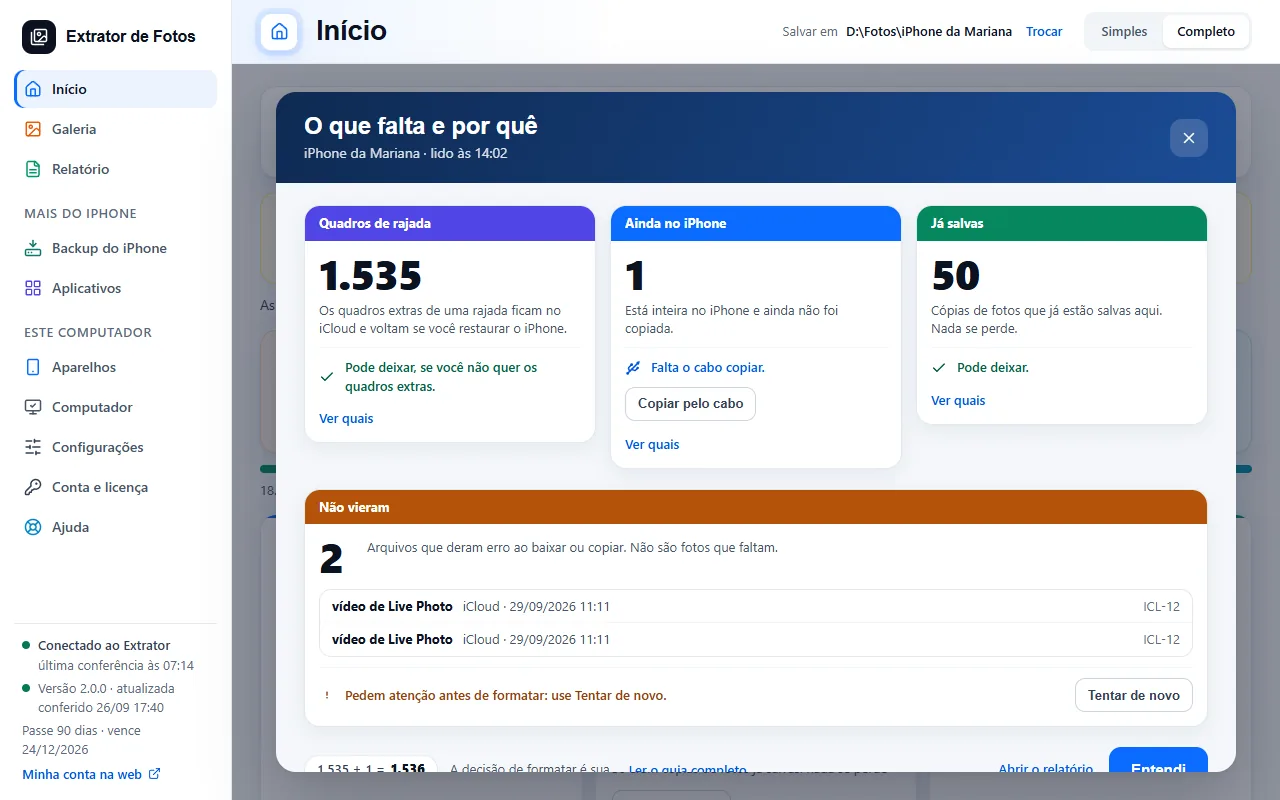 What is left after copyingWhen the copies finish and some photos are still missing, the program says what each one is, why it was left and whether you can leave it. The decision to erase is yours.8 steps
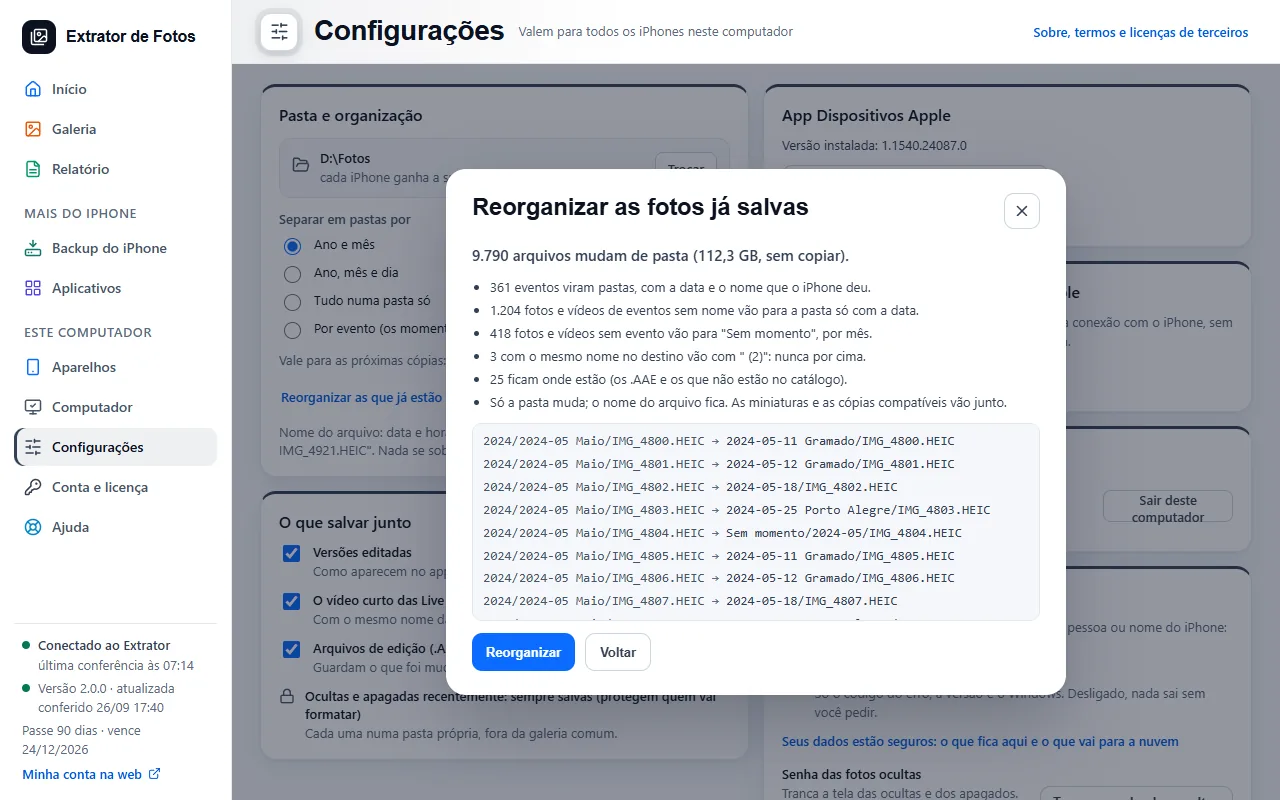 Sort the photos by eventBesides year and month, the program can split the photos by the events the iPhone itself creates (the moments): each event becomes a folder with the date and the name the iPhone gave it.6 steps
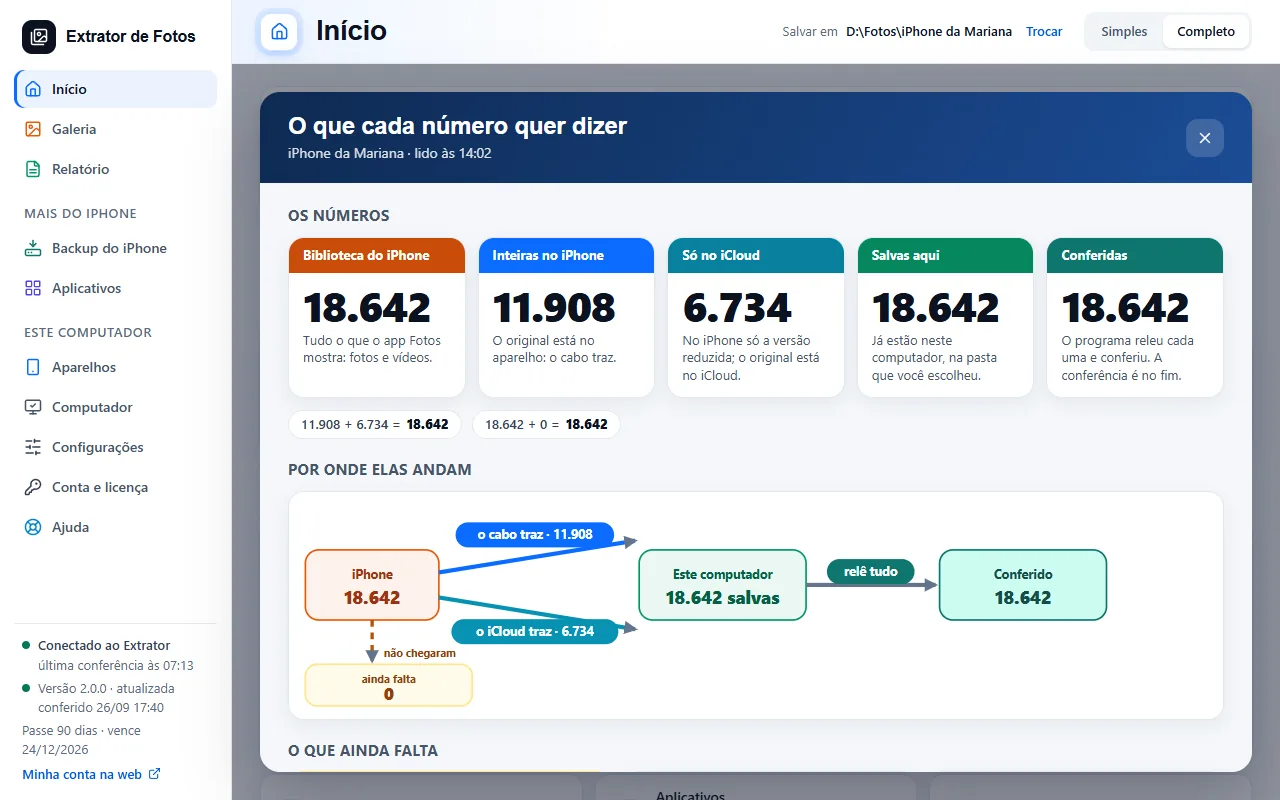 What each number meansOn Home and in simple mode, What each number is opens a panel that explains the numbers of the iPhone and of the computer. Every sum that shows up adds up.7 steps
Error codes in this topic
The code shows up on the program's screen. Each one has the cause and what to do.
COP-01“A device attached to the system is not functioning” when copying photosCOP-02Error 0x80070141: the device is unreachableCOP-03Missing photos: only some show up on the computerCOP-04Copying stops when the iPhone screen locksCOP-05A photo disappeared in the middle of the copyCOP-06A file's size is different from what the iPhone reportsCOP-08Repeated photos with “(2)” in the name (fixed)COP-09Photos taken during the copy weren't includedCOP-10Copying gets slow with lots of small photosCOP-11“Copying stopped: 5 rounds in a row with no new file”COP-12“This copy is waiting its turn: another copy is in progress”COP-13“The copy stopped for safety after many rounds in a row”COP-14“There is no receipt for this iPhone or iPad yet”COP-15“This iPhone or iPad is already with another client”CAT-01“The iPhone or iPad keeps the list of photos in a format this version can't read”CAT-02“The copy of the list of photos on this computer was damaged”CAT-03“Part of the list of photos couldn't be read (Live Photos, albums or events)”FMT-01An iPhone HEIC photo won't open in WindowsFMT-02An iPhone video won't open in Windows (HEVC codec)FMT-03Photos and videos have the wrong date on the computerFMT-04A Live Photo turned into two filesFMT-05Photo edits disappeared on the computerFMT-06One IMG_0001 photo overwrote another with the same nameFMT-07Duplicate photos when importing againFMT-08Very large ProRAW (DNG) photosFMT-09Slow-motion video without the effectFMT-10Hidden and recently deleted photos were left outFMT-11A screenshot or WhatsApp photo has no dateFMT-12A video over 4 GB won't copy to a USB flash driveFMT-13A video recorded upright appears sidewaysORG-01Folders can't be reorganized during a copyORG-02“This iPhone or iPad's catalog doesn't include the Photos app events”ORG-03“This move is no longer in this folder”TOQ-01“Windows could not open this file”TOQ-02“This format is not accepted here”TOQ-03“The chosen clip does not fit in this file”TOQ-04“The clip is longer than 40 seconds”TOQ-05“Could not save in this folder”TOQ-06“This computer does not have the codec for this file”TOQ-07“The conversion did not finish”TOQ-08“Another conversion is already running”TOQ-09“This format does not keep title and artist through Windows”TOQ-10“This file has no sound”MUS-01“The iPhone did not let the music and books folder open”MUS-02“The song names could not be read on this iPhone”MUS-03“Track protected by Apple: it was not copied”MUS-04“Could not save in this folder”MUS-05“Another export is already running”MUS-06“This item is no longer on the iPhone”MUS-07“The iPhone disconnected in the middle of the export”MUS-08“The songs couldn't be sent to the Music app”MUS-09“No exported songs to send”MUS-10“Windows didn't open this track”MIP-01“The albums of this iPhone could not be read yet”MIP-02“This album is no longer on the iPhone”MIP-03“This action is still turned off”MIP-04“An item with this name already exists in this iPhone folder”MIP-05“The iPhone did not let this folder change”MIP-06“Could not save the album in this folder”FOT-01“Some photos could not be compared”FOT-02“The similar photos analysis changed”FOT-03“This copy option is not available yet”FOT-04“Could not save the list in this folder”TOQ-11“This video is in an old format that Windows can't convert”
Still not fixed? Contact support
The team replies by email and in the customer area. In the program: Help. The error code goes along.