Seeing the iPhone's apps and its space
The list of apps, from largest to smallest, and which ones need attention before formatting.
Step by step
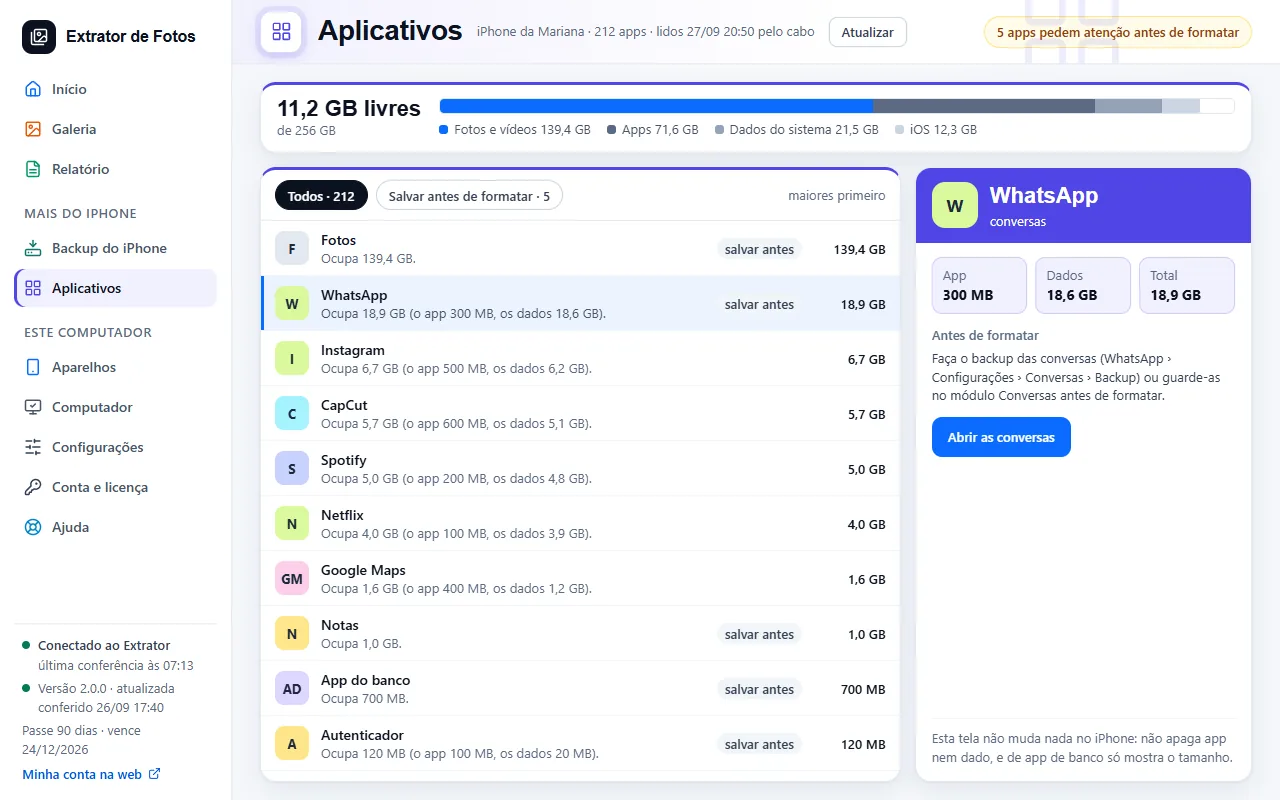
Open “Apps”. The list appears when the copy finishes: the iPhone is busy copying the photos over the cable, and the list comes by itself right afterwards.
The list shows the largest first. “Save before erasing” shows only the apps that need attention before formatting.
“iPhone storage” shows photos and videos, apps, System Data, iOS and the free space. The iPhone doesn't report how much the photos and videos take: they are inside “System Data and photos”.
Click an app to see the detail: the size of the app, of its data and the total.
To free up space, check the apps that can go (the “Can be removed” filter shows only those) and tap Remove, or open an app and use “Remove from the iPhone”. To confirm, type the app's name (or, for several, the phrase the screen shows). The program removes one at a time and checks on the iPhone that each one left; the app leaves the list right away, and the free space goes up on its own, with “+1.2 GB freed”. When the iPhone confirms the number, “Measured on the iPhone just now” appears; if it is still freeing the space, the number stays as an estimate until it finishes. Apple, banking and code apps never show up for removal, and copying an app's documents isn't available yet.
The apps Apple installs with iOS stay apart, at the end of the list, under “System apps (can't be removed)”, collapsed: tap the row to open it. They don't leave through the program and stay out of what frees the most.
To free up the app and keep its data, open the app and tap “Offload on the iPhone (keeps the data)”. Over the cable, the iPhone doesn't allow offloading an app or erasing just its data: that's why the screen shows the way on the iPhone itself, step by step: Settings › General › iPhone Storage › the app › Offload App, and confirm in the prompt. The icon stays on the Home Screen, with a cloud; tap it and the app comes back from the App Store with everything as it was.
More in iPhone backup
Still not fixed? Contact support
The team replies by email and in the customer area. In the program: Help. The error code goes along.