The iPhone doesn't show up or doesn't charge
From the lightest fix to the heaviest: stop at the step that solves it. Each step says whether it requires restarting the iPhone or the computer, or reinstalling the Apple app. A step that starts with a question only applies to that case.
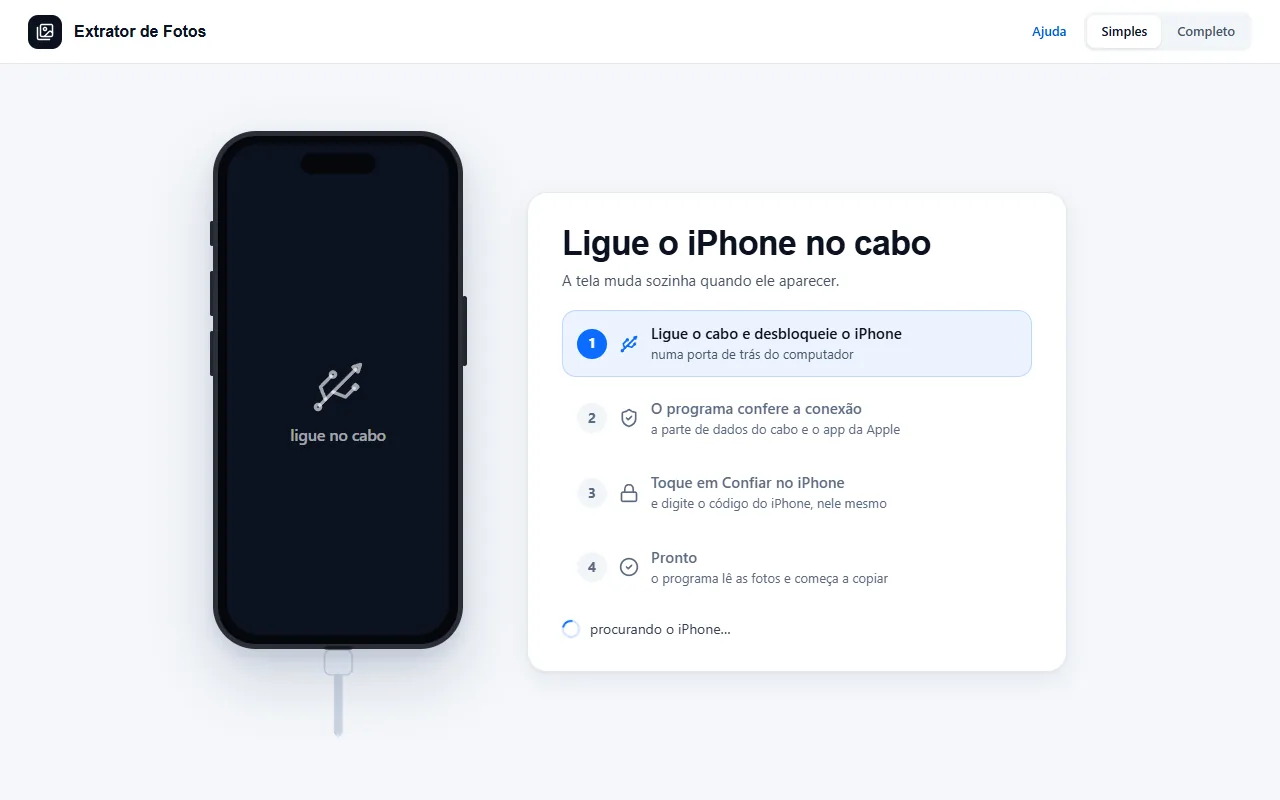
Step by step
Start with the cable: plug the iPhone into a port on the back of the computer and unlock it. Wait 30 seconds: the program's screen changes by itself when the iPhone shows up. No need to restart or reinstall anything.
A minute has passed and nothing? Switch the cable and the port: use an original or certified cable that transfers data, not just charge. No need to restart or reinstall anything.
Two cables in two ports and the iPhone neither shows up nor charges? Carefully clean the iPhone's charging port, then turn the iPhone off and back on. If still nothing, try another computer or take it in for repair. Requires restarting the iPhone.
The iPhone is on the cable and the program doesn't see it? First, the program opens the Apple Devices app by itself, in the background, and waits up to 40 seconds. If the app isn't installed, the program shows the button to install it from the Microsoft Store, for free. No need to restart or reinstall anything.
The program says “Another program is using the iPhone or iPad's cable”? Close that program (iTunes downloaded from the website, 3uTools, or something similar) and, with the iPhone unlocked, unplug and replug the cable. If the message comes back, uninstall that program (Windows asks for the administrator password) and restart the computer. Requires restarting the computer.
The program says “The iPhone or iPad connected for photos only”? With the Apple Devices app open and the iPhone unlocked, unplug the cable and plug it back in. Wait 15 seconds. If nothing changes, skip to the step about restarting the computer. No need to restart or reinstall anything.
The program says “Windows sees the iPhone or iPad and the cable's data connection is turned off” or “Unlock the iPhone or iPad to connect”? Unlock the iPhone and keep it unlocked: when it's been locked for more than 1 hour, it refuses new connections over the cable. If it asks something on the screen, like “Trust” or whether to allow the accessory, answer it. Wait 10 seconds. No need to restart or reinstall anything.
With the iPhone unlocked, unplug and replug the cable, and wait 15 seconds. No need to restart or reinstall anything.
Use another port on the back of the computer, directly, with no hub and no extension. No need to restart or reinstall anything.
Turn the iPhone off and back on. Then unlock it with your passcode. Requires restarting the iPhone.
The program says “Windows sees the iPhone, but the Apple connection did not open”? Then the Apple connection froze: the program restarts it by itself, once, and waits up to 40 seconds. Still not back? Restart the Extrator and the Apple connection, without restarting the computer. If the program shows the “Restart Extrator and the Apple connection” button, use it. If not, close the Extrator; in Windows Settings › Apps › Apple Devices › Advanced options, click Terminate; then open the Apple Devices app and the Extrator again. Requires restarting only the Extrator and the Apple connection.
Save anything you have open and restart the computer from the Start menu › Power › Restart. Requires restarting the computer.
Update or repair the Apple Devices app. First, open Microsoft Store › Library › Get updates. Didn't help? Go to Windows Settings › Apps › Apple Devices › Advanced options › Repair; and, if needed, Reset, in the same place. No need to restart or reinstall anything.
As a last step, uninstall the Apple Devices app (in the same place, Uninstall) and install it again from the Microsoft Store, for free. It's the app that brings the Apple component that talks to the iPhone: you don't touch any driver. Requires reinstalling the Apple Devices app.
Still nothing? Contact support through the program's Help. If you allow it, the connection diagnostics go along, and the team sees what the program measured. No need to restart or reinstall anything.
The iPhone shows up in the program, but doesn't trust this computer? Unlock it, tap Trust, and enter the iPhone's passcode. Away from home, Stolen Device Protection may ask for Face ID to trust. No need to restart or reinstall anything.
Connects and keeps dropping? Use the port on the back, with no hub, and another cable. If it keeps happening, turn off USB selective suspend in Windows Power Options, under USB settings: the program never changes this by itself. No need to restart or reinstall anything.
The computer's internet gets slow with the iPhone on the cable? Turn off the iPhone's Personal Hotspot while you use the program. No need to restart or reinstall anything.
The iPhone is on the cable and doesn't charge? Unlock it: on iOS 26, while it's locked, it may not charge from the computer. Use a port on the back, with no hub, and don't let the computer go to sleep. If it's hot, or the charge limit is on (80%), the iPhone itself holds back the charge. No need to restart or reinstall anything.
If an error shows up
The code shows up on the program's screen. Each article has the cause and the fix.
CON-09No iPhone or iPad shows up on the cableCON-08The iPhone or iPad doesn't charge or keeps disconnectingCON-02The Apple driver is installed, but the iPhone doesn't show upCON-01The iPhone or iPad doesn't show up in WindowsCON-17Another program is using the iPhone or iPad cableCON-18The iPhone or iPad connected for photos onlyCON-15Windows sees the iPhone or iPad and the cable's data connection is turned offCON-16Unlock the iPhone or iPad to connectCON-11Windows sees the iPhone, but the Apple connection did not openCON-21The Apple Devices app needs repairPAR-01The “Trust This Computer?” prompt doesn't appearPAR-04The Trust prompt asks for Face IDCON-03Copying stops midway, or you see “The device is unreachable” (0x80070141)CON-19The USB port goes into power saving and the iPhone or iPad dropsCON-14The internet is slow with the iPhone or iPad on the cableCON-20The iPhone or iPad is on the cable and doesn't charge
More in Connect the iPhone
Still not fixed? Contact support
The team replies by email and in the customer area. In the program: Help. The error code goes along.